|
Select property dialog |
Scroll |
Allows to select a system or library property to associate it with a table cell of the drawing title.
The dialog appears on the screen after selecting the Property... line. in the list of identifiers for a cell of type General for document in the Advanced cell format setup dialog box.

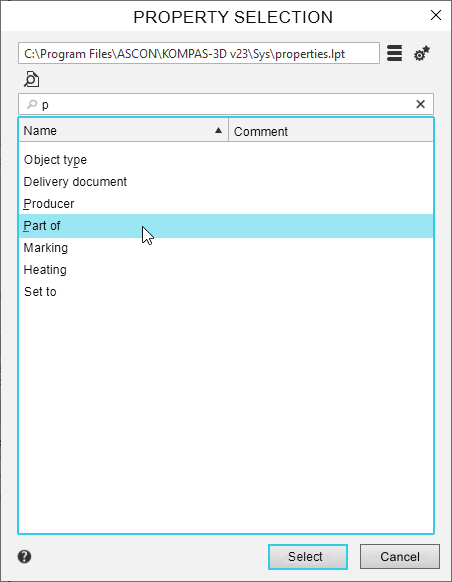
The description of the dialog box controls is shown in the table.
Controls description
Name |
Description |
|
Property source |
In field displays the full name of the library file or the word «System» if the System properties button is clicked. The field is not editable. To select another library file, click the field and then specify the required *.lpt file in the dialog box that appears. You can copy the contents of the field by invoking the Copy command from its context menu. |
|
|
Select library |
The button opens dialog box of the selection of Library file*.lpt. |
|
System properties |
The button allows you to display in the dialog those of the system properties that can be associated with a table cell of the main drawing caption. |
|
View |
The button allows you to view the parameters of the property selected in the property list. Calls the Property parameters dialog box. The button is not available if no property is selected in the list. |
Property list |
The window displays a list of properties - system properties or properties stored in the selected property library. The list is presented as a table with two columns: Name and Comment.The properties in the list can be sorted by name or by comment. To change the sorting, click on the desired column header. A triangle is displayed in the header of the sorted column. Its position shows the sorting direction - ascending or descending. |
|
Search field |
Above the list is the search field. Enter the characters you are looking for in it to start the search. After that, only those properties with the specified characters in their name or comment will remain in the list. To display the full list of properties in the list again, delete them all from the search field. The field can be cleared by clicking the «x» icon on the right side of the field. |


To confirm the selection of a selected property in the list, click the Select button in the dialog box. If no property is selected, the button is not available. It is available also to confirm the selection and close the dialog by double-clicking on the line of the required property.
To exit the dialog without selecting a property, click Cancel.
