|
Advanced fill control dialog box |
Scroll |
Allows you to edit the gradient fill selected in the graphic area.

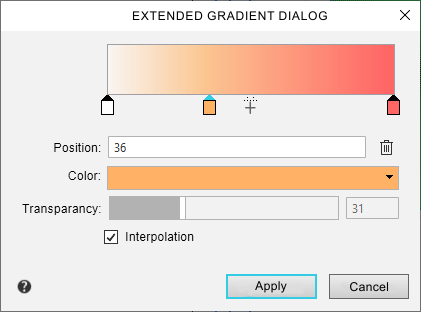
The description of the dialog controls is given in the table below.
Description of controls
Element |
Description |
|
Color transition scale |
Allows you to set fill colors, color positions, and transparency levels. Color markers are displayed at the bottom of the scale. Clicking on a marker makes it the current marker. The pointer of the current marker is blue. After clicking the «+» icon in the middle of the scale, a new marker appears. By default, the color of the created marker is intermediate between the colors of the nearest markers .To change the position of the intermediate marker, move it with the mouse or enter a value in the Position field. The number of intermediate colors is unlimited. |
|
Position |
The field displays an integer value in percent, characterizing the position of the current marker relative to the starting point of the fill. Position 0 corresponds to the initial color, position 100 — to the final fill color. The field is available if the current marker is an intermediate marker. |
|
|
Delete marker |
The button allows you to delete an intermediate fill color. The button is available if the current marker is an intermediate marker. |
Color |
The field displays the color of the current marker. A drop-down list allows you to select a color. Clicking on the Other colors line displays an extended color selection dialog. |
|
Transparency |
The scale allows you to set the transparency of the current fill color. The transparency value in percent is displayed in the field to the right of the scale. If the transparency is 0%, the fill at the current position is completely opaque. If the transparency is 100%, the fill at the current position is fully transparent. To change the transparency, move the «slider» with the mouse — to the right to increase or to the left to decrease the transparency level — or enter a value in the field to the right of the scale. Changing the transparency value is displayed on the Color transition scale. For start and end markers, changing the transparency is always available. For intermediate markers, transparency change is available if the Interpolation option is disabled. |
|
|
Some output devices do not support transparent fill printing. In these cases, it is recommended that you enable an alternative output method when setting up printing (see Advanced output settings and Setting output parameters). |
|
Interpolation |
The option controls the setting of intermediate transparency levels in the fill. •The option is available if the current position is an intermediate marker.If the option is enabled, the transparency at the current position is determined automatically. Its percentage value is displayed in the field to the right of the Transparency scale. Transparency value is interpolated between values in the nearest positions — before and after the current one. Manual change of transparency is not available. •If the option is disabled, the value of the current transparency is set manually using the Transparency scale or the field to the right of the scale. |


After changing the parameters, click the Apply button. To exit the dialog box without changes, click Cancel.
