|
Performing transformation |
Scroll |
Transformation commands are used in cases when you need to shift, rotate or scale a part of the image so that the objects whose characteristic points changed position, do not lose their connection with fixed objects. i.e. transformation commands allow editing elements without "breaking" the image.
In KOMPAS-3D this can be done:
•Transformation by displacement,
After invoking a transformation command the system waits for specifying the objects to transform. The sequence of specifying objects is described in the section Selecting objects to transform.
After the objects are selected, the system proceeds to performing the transformation command. This changes the set of controls in the Parameter Toolbar.
To position the cursor precisely and to set the operation parameters you can use Snaps and geometrical calculator.
|
Transform commands are grouped. While executing a group command, you can switch to execution of another one using buttons of the Parameter Toolbar header. If you select some objects in one transform command, then after proceeding to another command of the group these objects remain selected. |

Transformation by displacement
Transformation by shifting means moving a part of the image. The part you need to transform is selected by a marquee. Elements which fit in the marquee completely are shifted, partially fitting elements are transformed, and elements which are outside the frame remain in the same position unchanged.
Step-by-step instructions
1.Run the Transformation by displacement command  .
.

2.Select the objects to transform using the rectangular frame. Names of the selected objects are displayed in the Objects field of the Parameter Panel.
3.Set the operation parameters using one of the methods:
•specify the base point for shifting, and then set the new position for this point;
•enter the offset values along the current coordinate system axes in the X–axis Shift and Y–axis Shift fields.
Transformation by displacement will be performed automatically.
4.To complete operation of the command, click Finish  .
.
|
|
a) |
b) |
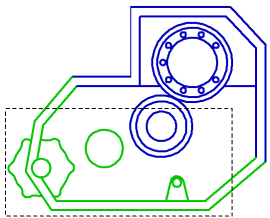
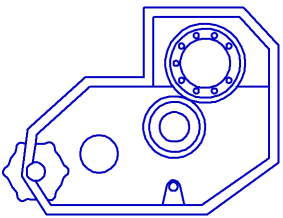
Performing transformation by shift
a) selecting the objects, b) the operation result
Transformation by rotation means rotating a part of the image around the given point – the rotation center. The image part you need to transform is selected by a marquee. Elements which fit in the marquee completely are rotated, partially fitting elements are transformed, and elements which are outside the frame remain in the same position unchanged.
Step-by-step instructions
1.Call the Rotate Transformation  command.
2.Select the objects to transform using the rectangular frame. Names of the selected objects are displayed in the Objects field of the Parameter Panel.
3.Set the rotation center point.
4.Set the operation parameters using one of the methods:
•specify the base point for the rotation, and then set the new position for this point;
•enter the rotation angle for the objects in the Rotation Angle field.
Transformation by rotation will be performed automatically.
5.To complete operation of the command, click the Finish .
|
|
a) |
b) |
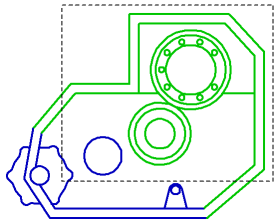
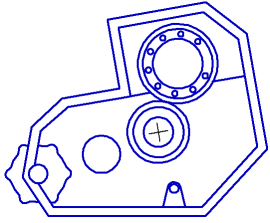
Performing transformation by rotation
a) selecting the objects, b) the operation result
Transformation by scaling means changing dimensions of a part of the image. Dimensions are changed the coordinate axis directions based on the specified coefficients.
The image part you need to transform is selected by a marquee. Elements which fit in the marquee completely are scaled, partially fitting elements are transformed, and elements which are outside the marquee remain in the same position unchanged.
Step-by-step instructions
1.Call the Transformation by Scaling command  .
.
2.Select the objects to transform using the rectangular frame. Names of the selected objects are displayed in the Objects field of the Parameter Panel.
3.Enter the coefficients of scaling by the coordinate axes in the X-axis scale and Y-axis scale fields.
|
If there are circles or circular arcs or whole views among the selected objects, then only the Scale field will be present in the Parameter Panel. In this case scaling is done with the same coefficient value by axes. |
4.Set the scaling center point. Transformation by scaling will be performed automatically.
5.To complete operation of the command, click the Finish .
|
|
a) |
b) |
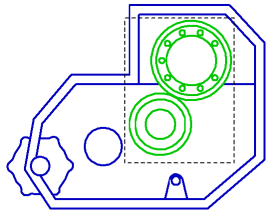
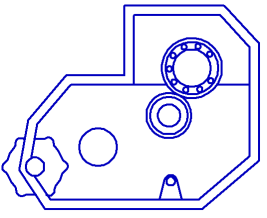
Performing transformation by scaling
a) selecting the objects, b) the operation result
