|
Structure description |
Scroll |
After confirming the creation of a table-type attribute (by closing the attribute creation dialog with the Apply button), a dialog box appears on the screen displaying the structure of the table-type attribute; see the figure.
A table at the bottom of the dialog is used to create structure description. Each table line tells how a column is generated in the table attribute. Line in which the cursor is located is considered to be active.
Table attribute structure description dialog controls are described in table Table attribute structure description dialog.
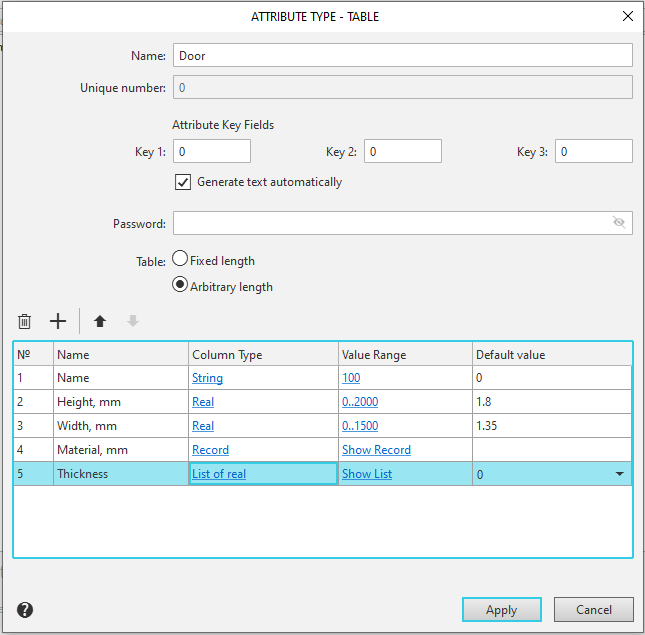
Table attribute structure description dialog
Table attribute structure description dialog
Name |
Description |
|
Name |
Field where you can edit the name of attribute type being created. |
|
Unique Type Number |
Reference field that contains an unique number automatically assigned by the system to the attribute type being created. Newly created attribute type has no number. You can see the number when viewing the attribute for the next time or when editing the created attribute. |
|
|
Attribute Key Fields |
The field group allows you to configure attribute settings to generate the text portion of a BOM object. |
|
Key 1 Key 2 Key 3 |
Fields for entering keys. The key values determine in which section of the BOM this attribute will be available as a template for filling in the text (the attribute must be located in the Spc.lat file). Learn more... |
|
Generate text automatically |
This option determines how spaces are placed in text composed of characters entered in the attribute columns. •If the option is enabled, spaces between text fragments are automatically inserted according to standards. For example, in the bolt designation “Bolt 1 M12...,” spaces are added before and after the version designation, but no space is added before the diameter value. •If the option is disabled, spaces are not added between text fragments. If necessary, you can include them in existing columns (available if the column type is "String") or create new columns between the columns that should be separated by a space, with the content of these new columns being a space. |
Password |
A field for entering a password to access an attribute-type structure. The password is entered, for example, to protect the structure from unauthorized editing. |
|
Table |
The options group allows you to select the desired table type: •Fixed-length •Variable length |
|
Number of rows |
Enter the desired value in the field. Available when selecting the Fixed-length table type. |
|
|
Delete |
A button that allows you to remove a column from an attribute. When you click it, the row that was active at the time the button was clicked is removed from the attribute structure description dialog. |
|
Add |
This button allows to add a new column to an attribute. When you press the button, a new line appears in the attribute structure description dialog under the line which was active at the moment. |
|
Move up/down |
A button that allows you to move a column. After clicking it, specify the new position of the active row. |
№ |
Automatically assigned column number. |
|
Name |
Field for entering the name (heading) of the attribute column. |
|
Column type |
A field for selecting the data type for a column. To open the dialog box for changing the data type, left-click the field, and then click the Change Type button that appears. The dialog box for selecting a column data type is described in the next section. |
|
Value Range |
A field for specifying the range of valid values for the data in the column. To change the range of values, left-click in the field, and then click the button that appears. For integers and real numbers, you must specify the maximum and minimum values; for a text string, you must specify the maximum length in characters. If the data type in the column is a record, clicking the button in the Value Range field opens the dialog for defining the record structure. For details on creating a record, see Defining the Record Structure. |
|
|
The maximum possible range for integers: from -2,147,483,647 to 2,147,483,647. The maximum possible range for real numbers: from -1.7e+307 to 1.7e+307. Maximum possible string length: 4000 characters. |
|
Default value |
A field for entering a default value in the attribute column. |


Once you have finished describing the structure, click the Apply button in the dialog box. The icon for the table attribute you created and its name will appear in the attribute type dialog box.
Data type selection
The column data type selection dialog is shown in the figure below.
Controls in this dialog are listed in table Data type selection dialog.
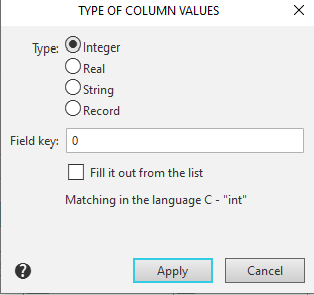
Data type selection dialog
The element |
Description |
|
Integer, Real, String, Record |
Data type options in the attribute column. For detailed information about the data type of a record, see Defining the Record Structure. |
|
Field Key |
A field for entering the primary key value for this column. Only integers up to 9999 are allowed. |
|
Filling from List |
An option that allows you to create a list of values for the cells in a custom column. Subsequently, when an attribute of this type is assigned to an object, values can only be entered into this column by selecting them from the list (the process of creating the list is described in the next section). If the "Record" data type is selected, this option is not available. |
|
Corresponds in C Language to- "int" |
Information on which C language data type corresponds to the selected data type in the column (this information may be required when developing KOMPAS application libraries). |
Creating value lists to populate cells
If a column is configured to populate cells with list values, the list itself must be created.
To do this, left-click the Value Range field, then press the Show List button that appears, see the illustration.
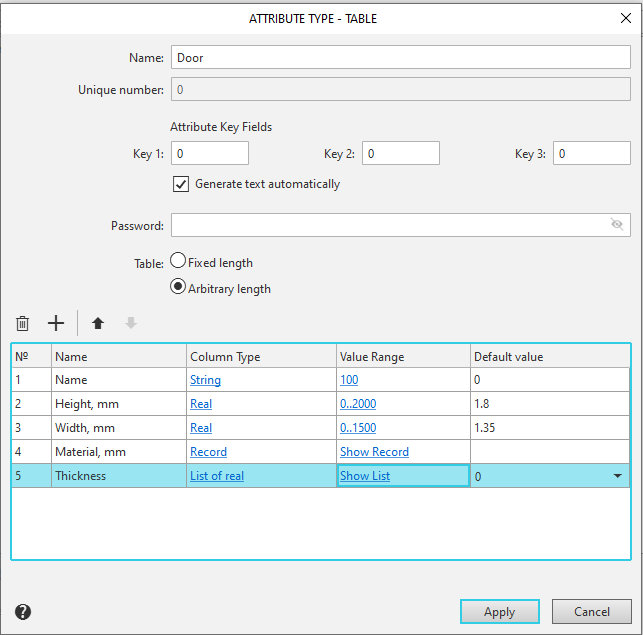
Open the input dialog box
The list values entry dialog appears, see the following figure.
Enter the value to be added into the list in the bottom field of the dialog and press Add button. The value will be added to the list, moved to the top field. The bottom field is cleared. Repeat the actions above to populate the list.
To remove a value, select it and press Delete button.
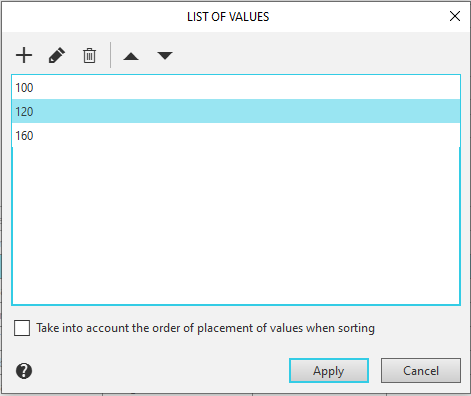
List values entry dialog
A record is a row in another table to which this cell refers.
To create this table, left-click the Value Range field, then press the Show record button that appears, see figure.
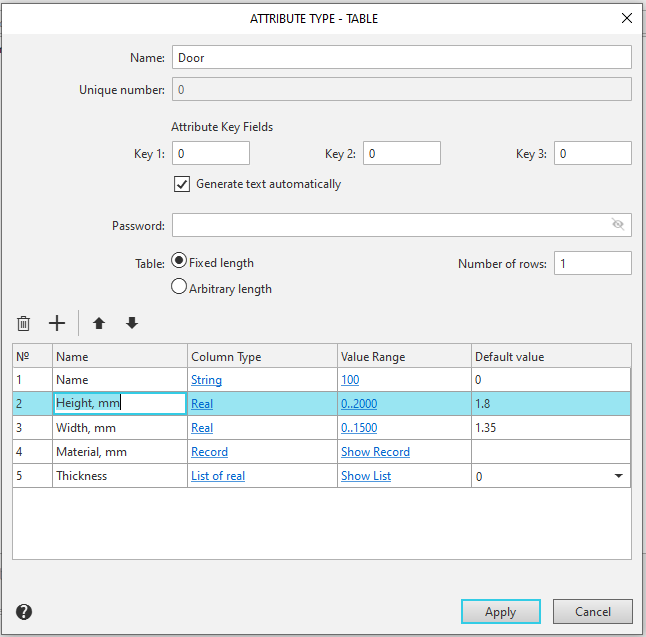
Invoking the Record Structure Creation dialog
The record structure creation dialog appears on the screen, see the figure below.
Creation of record structure is virtually identical to creation of table attribute structure. The only difference is impossibility to create a record: that is, record recursion (nesting) depth can not be greater than one.
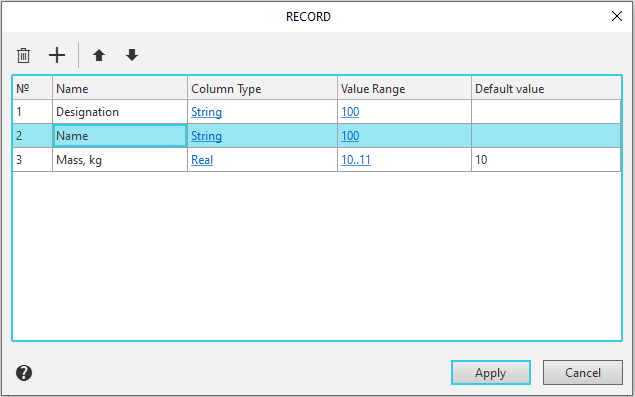
Record structure creation dialog
