|
Structure of the Design tree and working with its objects |
Scroll |
In this section:
Composition of the Design tree
Unfolding and collapsing the branches of the Design tree
Techniques of working with objects of the Design tree
The root element of the Design Tree is the model itself, i.e., a part or an assembly. The composition of the information displayed in the root element row is customizable (see sections Current document and Root control).
Icons and names of model objects are automatically displayed in the Design tree immediately after these objects are created (see section Names and icons of objects in the Tree).
Components of an assembly model — parts and subassemblies — are separate models. Therefore, component objects are located in the corresponding Tree branches.
The Tree contains additional information about the model shown as icons in the left-hand part of the Tree and icons in front of object names.
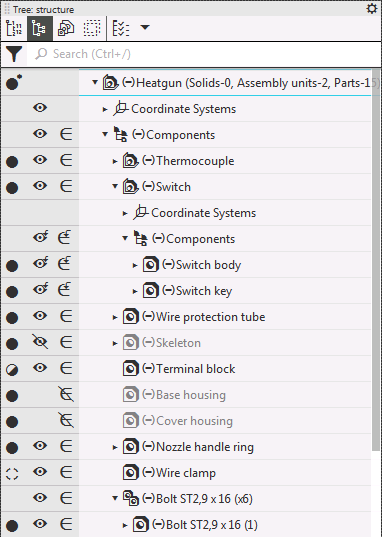
Assembly Design tree
Unfolding and collapsing the branches of the Design tree
The build tree has a hierarchical structure—the root element has first-level branches, which may also have their own branches, and so on.
If a branch has child branches, an icon appears next to its icon  .
.
To view the branch structure, click on the icon or press the <→> key. Only the current branch will be expanded. You can expand child branches in the same way.
To collapse a branch, do one of the following:
•click the icon  or press the <←> key—only the current branch will be collapsed,
•select the Collapse command from the context menu:
•for the root element — all expanded branches of the Tree up to the first level will be collapsed, i.e., the root element itself will remain expanded,
•for a branch — all child branches and the branch itself will be collapsed.
|
The Collapse command is available if the selected item has child branches and at least one of them is expanded. |

Techniques of working with objects of the Design tree
•General techniques are described in the section "Techniques for Working with the Document Tree."
•Searching for objects in the Tree is described in the Searching in the Document Tree section.
•Changing the construction order (available if the construction history is enabled in the Tree) is described in the section Changing the Sequence of Operations.
•Selecting and specifying objects in the Tree is described in the section Selecting objects in the Design Tree.
•Sorting components and bodies in the Tree is described in the section Sorting objects in the Design tree.
•Numbering objects in the Tree is described in the section Numbering objects in the Design tree.
•Working with variables of the selected object is described in the section Working with variables in the Design Tree.
•Viewing the relationship hierarchy of a selected object is described in the section Viewing object links.
•You can manage objects using icons or context menus.
•Icons are displayed in the fields on the left side of the Tree (see figure). They allow you to configure objects individually. When you hover the cursor over an icon, a tooltip appears with the name of the current property value. Clicking on the icon changes the property value to the opposite (if there are two values) or opens a list of values (see figure). The set of properties and, accordingly, icons depends on the object type, for example:

 — visible/hidden object (for information on visibility control, see the section Controlling the visibility of individual objects),

 — object included in the calculation/excluded from the calculation (for information on excluding objects from the calculation, see the section Excluding objects from the calculation).
The set of fields with icons can be customized. To do this, use the menu accessed by clicking the button  in the Tree header. For example, when working with assemblies, you can enable a field that displays the download type for the assembly and its components.
•Context menus are accessed by right-clicking on a selected object in the Tree. Context menus allow you to configure objects individually or in groups (to do this, select all the objects to which the command should be applied before invoking it). The context menu contains not only commands for changing properties, but also other commands for managing objects; see the figure.
|
|
a) |
b) |
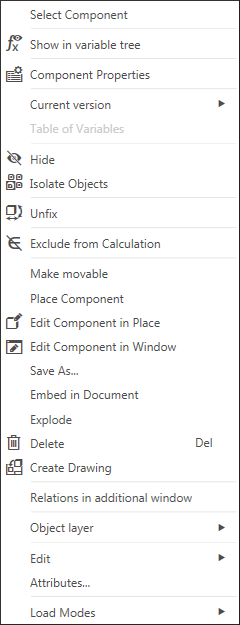
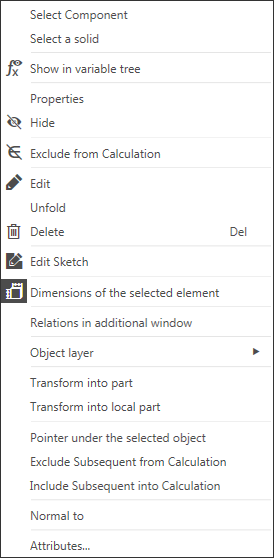
Context menu of objects in the Design tree
a) of a component, b) of an operation
|
All commands in the context menu of sections, except for the Attributes command, apply to all objects included in this section. |
