|
Building a Full Fillet |
Scroll |
To construct a full fillet, use three sequentially connected faces: two lateral faces and one central face. The side faces shouldn't be adjacent while the central face should be adjacent with each lateral face. As a result of the operation, the central face disappears and the two side faces connect surfaces where surface section is an arc tangential to the three initial faces in each of its points see figure.
|
All faces must belong to the same solid or stitched surface |

To build a full fillet, run the Full fillet  command.

Step-by-step instructions
1.Determine whether the lists of selected faces will be generated automatically or manually. To do this, set the Switching selection switch to the desired position:
•Auto — the specified face is entered into the field automatically determined by the system.,
•Manual — the specified face is entered in the field selected by the user.
2.Specify the desired faces in the graphic area.
3.The names of the selected faces will be shown in the fields Side Faces 1, Side Faces 2 and Center faces. Each field can contain only faces adjacent to each other.
|
When you move the cursor over an edge, a tooltip appears near the edge with the name of the field where the edge will be entered, or with text «The wrong face». |
•For the Auto method
Specify the desired faces sequentially. The system will determine which set each of them belongs to and add the faces to the corresponding sets.
•For the Manual method
Activate the field corresponding to the desired face in the Parameters Panel and specify the face in the graphic area. For one indication, you can select a single face or a group of faces that satisfy a certain condition. The elements of the Quick Access Toolbar are used to set the condition.
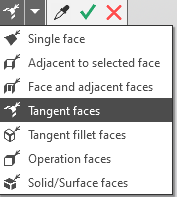
By default,By tangent faces option is enabled in the Parameters Panel. This option applies to both automatic and manual field filling. When this option is enabled, not only the specified face is added to the selected ones, but also the faces connected to it smoothly or tangentially. The addition is performed regardless of which way of selecting objects is set in the Quick Access Toolbar with the manual option of filling in. In the future, when editing the model, the appearance of such faces will be monitored and the result of the operation will be rebuilt. If this is not required, disable By tangent faces option.
2.If necessary, set the name of the full fillet and its surface properties in the Properties section. More details on the management of color and optical properties...
4.To complete the operation, click Create object  .
.
After confirming that the operation has been completed, a full fillet of the selected faces appears in the model, and a corresponding icon appears in the Design tree.
5.To complete operation of the command, click Finish  .
.
