|
Building array by grid |
Scroll |
To build an array, the instances of which are located at the nodes of a parallelogram grid, use the command Array by grid  .
.

Procedure
1.Select the source objects to build the array. To do this, in the Select objects specify the required objects and click the Create object  .
.
The array control elements will appear on the Parameters Panel. The names of the selected objects are displayed in the Objects field.
|
If objects are specified before the Array by grid command is called, the object selection subprocess is not started. The system immediately proceeds to building the array. If you need to select other source objects, click the Objects link and specify new objects in the object selection subprocess. |

The graphic area displays a phantom array. The array instances are located at the nodes of a parallelogram grid. The base points of the instances coincide with the grid nodes. The base point of the original instance is determined automatically and cannot be changed.
|
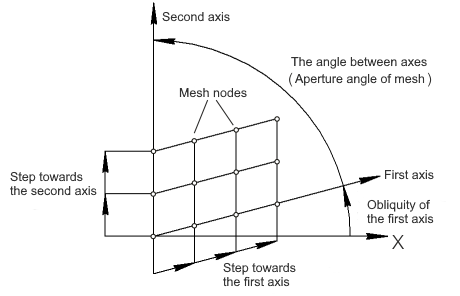
Scheme of array formation on a grid
1.Using groups of elements Direction 1 and Direction 2 set the parameters of the parallelogram grid. More...
The grid parameters can also be changed in the graphic area by moving the characteristic points. More...
2.Use the Schema group of buttons to choose how to arrange the instances within the grid. Learn more...
3.If you want dimensions to be automatically added to the array, select the With dimensions option. Learn more...
4.You can delete some array instances and restore deleted ones. To do this, use the Deleted Instances section. More...
5.To complete the array building, click the button Create object .
An array will be created in the document. An object with an icon will appear in the Document tree . More about array display in Tree...
Array objects are automatically constrained by the Array by grid constraint. Object constraints are displayed in the graphic area in constraint view mode or when you select array objects. The Array to grid constraint is indicated by the icon  for the original object and by the icon
  .
.
Working with arrays tips&tricks
Tips
•You can specify the values of numerical grid parameters by entering expressions. To do this, click in the field, enter the expression, and press the <Enter> key. The syntax of expressions is described in the Expression Syntax section.
•To specify grid parameters expressed in linear or angular values, you can use the geometric calculator commands.
See also
