|
Mid-surface building |
Scroll |
The command used to build the average surface is Mid-surface .
.

Procedure
1.Specify a face or set of faces as the first surface. The name of the object(s) will appear in the Surface 1 field on the Parameter panel.
Then activate the Surface 2 field and specify a face or set of faces as the second surface. The name of the objects will appear in the field
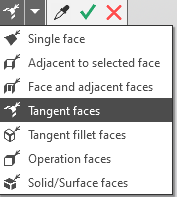
To select the desired set of faces, select the appropriate field—Surface 1 or Surface 2—set the selection criteria, and specify the faces.
After defining the faces of the first and second sets, the phantom of the average surface appears in the graphics area. It may consist of one or more surfaces.
The absence of a phantom indicates that it is impossible to construct a mean surface relative to the selected source objects.
2.Select the method for constructing the average surface by clicking the appropriate button in the Method group:
 By center cloud — the surface is constructed using the centers of spheres tangent to the original faces,
 By equidistant pairs — The surface is constructed equidistant from the original faces (if the original faces are equidistant from one another).
More about construction methods...
2.The mid-surface can be trimmed by the body to which the source faces belong. The Trim the result option is used for this purpose.
•When this option is enabled, the middle surface is trimmed by the edges of the body.
•When this option is disabled, the mid-surface is built without trimming.
The Trim the result option is present in the Parameter panel if all faces of the source surfaces belong to the same body.
3.If you need to check the surface for self-intersections, enable the Check for self-intersections option. If self-intersections are detected, a corresponding message will appear on the screen, and the created surface will be marked as erroneous in the Design tree.
Details about self-intersection of surface...
4.If necessary, specify the name of the mid-surface and its display properties using the controls located in the Properties section of the Parameter panel.
Details about color and optical properties management of objects...
6.To confirm the creation of the mid-surface, click the button Create object  .
.
The created surface will be displayed in the graphic area, and its icon will appear in the Design tree .
|
If the building results in more than one surface, then after the operation is completed, the process of changing the set of surfaces is launched. Select the surfaces to be left. Details... Each of the remaining surfaces is a separate object. You can, for example, change the color of the surface, hide it, or move it to a layer. However, they all remain created by one operation, so if you edit the operation, all of these surfaces are changed. |

9.To complete the command, click the button Finish  .
.
See also
