|
Placing Technical notes in the drawing |
Scroll |
You can start the mode of placing technical notes in the drawing in two ways:
•by running the Layout — Technical notes — Place command,
•by running the Place command from their context menu.
|
The above commands are available only if the text of technical notes was created (see section General Information). |

In the placement mode, a marquee with dots in the corners is displayed around the technical notes text, see figure.
To relocate the technical notes to another place, place the cursor inside the marquee (it will change its shape to a four-headed arrow  ), click the left mouse button and move the mouse while holding the button down. Technical notes will be moving after the cursor. Once the required position is reached, release the mouse button.
|
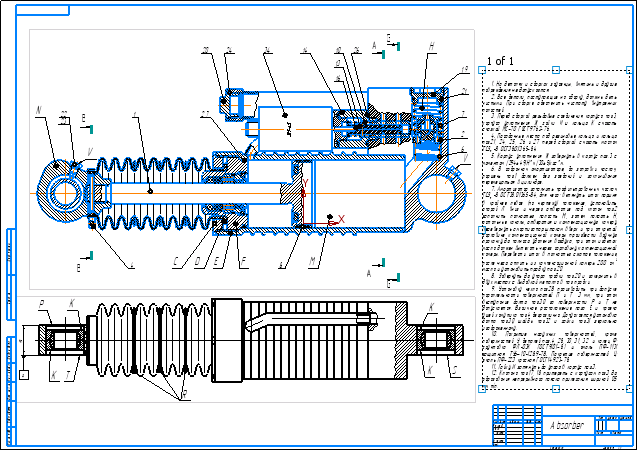
Technical Specifications Placement Mode
By dragging the defining points located on the sides and in the corners of the marquee with the mouse, you can change the size of the technical notes page.
It is also possible to set the precise location and page size for the technical notes. To do this, in the Borders section on the Parameter Panel, set the distances from the left-hand and bottom sides of the format (external marquee of the drawing) to the left, right, top and bottom sides of the marquee of technical notes.
To complete placing the technical notes, click Finish  button in the Parameter Panel header.
