|
Dialog for viewing and editing characteristics of the string or numeric attribute type |
Scroll |
Allows you to set or edit the description of a string (or numeric) attribute.
The dialog box appears on the screen after you click the Edit  button or Preview
  in dialogs Attributes and Attribute types.

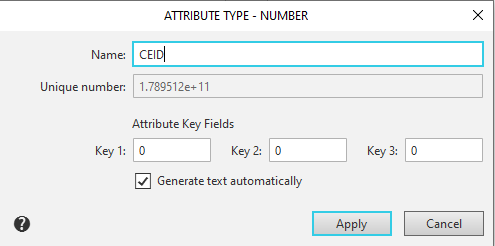
Description of Controls
Element |
Description |
|
|
Name |
A field for entering or editing the name of an attribute type. |
|
Unique number |
The field contains a unique identifier that the system automatically assigns to this attribute type. |
|
Attribute Key Fields |
The field group allows you to configure attribute settings to generate the text portion of a BOM object. |
|
Key 1 Key 2 Key 3 |
Fields for entering keys. The key values determine in which section of the BOM this attribute will be available as a placeholder for the text portion (the attribute must be located in the Spc.lat file). Learn more... |
|
Generate text automatically |
This option determines how spaces are placed in text composed of characters entered in the attribute columns. •If the option is enabled, spaces between text fragments are automatically inserted according to standards. For example, in the bolt designation “Bolt 1 M12...,” spaces are added before and after the version designation, but no space is added before the diameter value. •If the option is disabled, spaces are not added between text fragments. If necessary, you can include them in existing columns (available if the column type is "String") or create new columns between the columns that should be separated by a space, with the content of these new columns being a space. |
To finish working in the dialog and save your changes, click the Apply button. To exit the dialog without saving your changes, click the Cancel button.
If this dialog box is opened to view properties, you cannot change the name of the attribute type or its keys. In this case, click the Close button to exit the dialog box.
