|
Record structure description dialog |
Scroll |
Allows you to define or edit the record structure for a table attribute column. In fact, a record is a single-row table embedded within a cell of the main table. Each row contains information that determines how the column is formed within the record.
A dialog box appears on the screen after clicking the Show Record in the cell of the Value Range in the table type attribute description dialog.

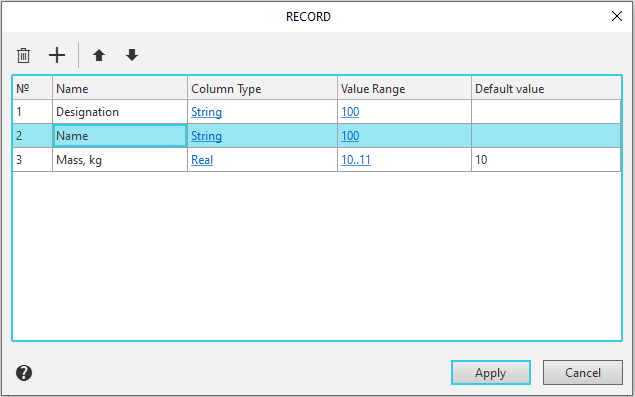
Description of Controls
The element |
Description |
|
|
Delete |
This button allows you to delete a column of a specific attribute type. Select the desired row in the table and click the button. |
|
Add |
This button allows you to add a new column of the attribute type. |
|
Move up/down |
To change the position of the active row, click the button and use the mouse to select a new position for the row. |
№ |
Automatically assigned column number. |
|
Name |
In this field, you specify the name (heading) for the attribute column. |
|
Column Type |
Use this field to set the data type for the column. To open the dialog box for changing the data type, left-click on the field. |
|
Value Range |
This field sets the range of values allowed for the data in the column. To change the range of values, left-click on the field and then click the button that appears, the name of which depends on the type of data in the column. |
|
Default value |
In this field, you can enter a default value for the column. |


Once you have finished editing the record structure, click the Apply button. To exit the dialog without making any changes to the structure, click the Cancel button.
