|
Objects display |
Scroll |
The Name column contains a Tree–structured list of objects.
If the Grouping  button is pressed, the objects are displayed in a grouped form. This means that objects located at the same level with coinciding properties are represented by a single row. The number of group objects is summed up and displayed in the Number property. Values of one object of the group are displayed as values of other properties. Any rows without a coincident property value are left unchanged.
If the button is released, the full list of items is displayed.
In a drawing, with the objects grouping enabled, objects can also be grouped by views. To do this, click the triangle to the right of the group button and run the Group by types command in the menu that appears. After running this command, objects will be displayed as grouped by their views. Names of views can be edited.
If the drawing contains several views from one model, then the model is displayed in several views of the document. In this case, the Number property value of such a model is always equal to one.
|
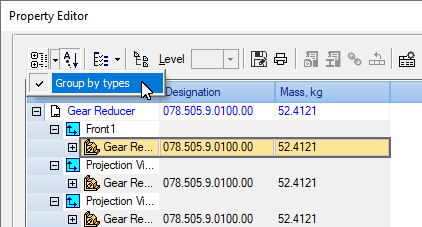
Running the group by types command in a drawing
To manage sorting of items, use the Sort  button. In the dialog box, objects are sorted by types, regardless if the button is pressed or not.
If the Sorting button is enabled, then objects of each type are sorted in alphabetic order. If the button is released, then objects are displayed in the order of creation.
To enable or disable display of objects of a certain type in the Editor, click the Design Tree Structure  button.
A menu containing the list of object types will appear on the screen. A "tick" to the left of the name means that display of this type of objects is enabled, no "tick" — disabled.
The enabled Show All option in the menu means display of all types.
To set the level up to which inclusive objects from the model assembly units will be displayed, click the Level  button. A list where you can select a level number becomes available.
By default, this button is not pressed. This means that objects of all the model levels can be edited.
The Level control is available in the Editor during work in a drawing or assembly.
Icons of grouped objects in the Property Editor
Icon |
Grouped objects types |
|
|
Parts |
|
|
Sub-assemblies |
|
|
Library components |
|
|
Stock Products |
|
|
Local parts |
|
|
View inserts in a drawing |
|
|
Fragment inserts in a drawing |
|
|
Macro-elements in a drawing |


