|
Simple report |
Scroll |
As an example we, consider creating a report by an assembly model.
1.Open any file from an assembly, on which a report is needed.
2.Call the Create Report  command. The report settings elements will appear on the Parameters Toolbar.
3.In the Method group, select the Select All at All Levels  option — all parts included in the assemblies will be listed in the report.
4.In theStyle list, the Report Format section leave the By default option.
5.Edit the default style. To do this, click the Set report style...  button to the right of the Style field.
In the opened Report Style dialog perform the following actions.
5.1. Add a new column to the style by clicking Add a column to the right  . From the list in the top cell of the column, select the Object Type property. This property is added solely for data sorting in the report; you do not need to display the object type in the report. Therefore, disable the display of the property using the Display option.
5.2. Configure the data sorting options in the report. To do this, click the Sorting field of any column. This option opens the dialog Data Sorting in Report.
By default, sorting by designation is performed on the first level. In our assembly, component symbols are not configured, so sorting by designations is not required. To generate such report set the first level of sorting by the Object Type property and the By List sorting option. For the second level of sorting, leave the default option — the Name property and theA-Z sorting order option . The third level of sorting is not required. Click Apply to complete the configuration process.
|
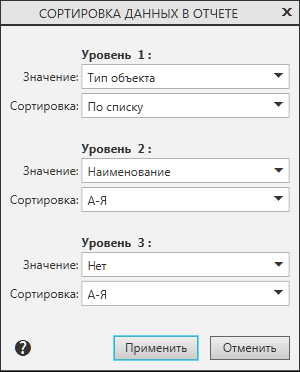
Example set–up of sorting
5.3. Configure the rest of the style parameters — column width, alignment, etc.
5.4. Enter a name in the Style Name field.
5.5. Save the new style to the style library by pressing the Save Style to Library... button.
5.6. Close the style configuration by clicking Applyin the dialog.
|
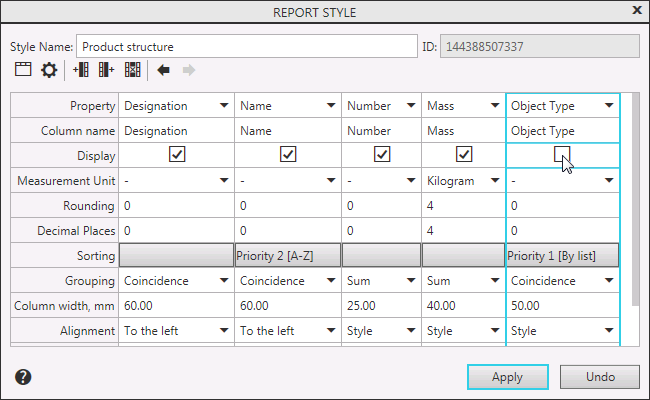
Example of a report style setting
6.To create a report without an associative relation to the document and without links, disable the Associative report and Data as links options in the Report Format section of the Parameters Panel.
7.Click Create Report  in the header of the Parameter Panel. The system will switch to the Data processing window where the generated report will be displayed.
For our example, the report will look as shown on the figure. Sub-assemblies be listed first followed by parts. Within groups (subassemblies and parts) objects are arranged in alphabetical order (sorted by name). The object type column is not shown, since its display is disabled.
|
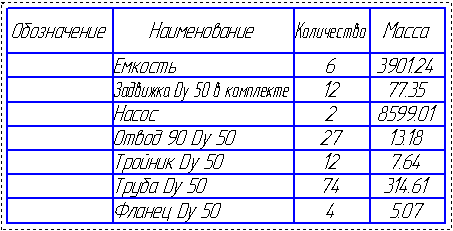
Displaying the report in Data processing window
8.If required, you can edit the report using the commands of the Data processing window — insert blank lines, enter text, move or delete lines, etc.
9.Save the report as a separate document using the Save Report As...  command or place the report in an existing document by clicking the Create report button in the title of the Parameters panel.
