|
Report Style dialog |
Scroll |
Allows you to customize the report style parameters and save it to the style library.


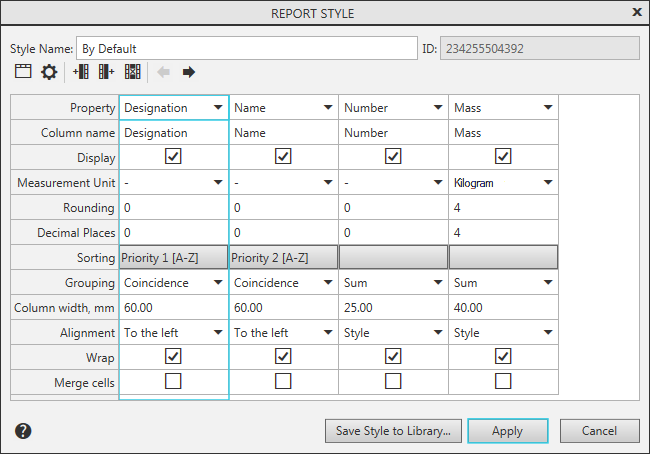
Description of Controls
The element |
Description |
|
Style Name |
Field to enter the name of the style. |
|
ID |
Reference field that contains an unique number automatically assigned by the system to the style being created. This number will be displayed in the dialog when you subsequently view or edit the generated style. |
|
Setup window |
The window displays style settings in the form of a table. The table contains: •a column for each of the object properties: the property name is in the top row of the table; •cell rows with elements for setting property values: the setting name is to the left of the window, and the result of the setting is displayed in the cell. When you create a new style, the window is empty, but when you edit an existing style, it contains a set of properties defined in the style. If you configure style when you Report creation, for editing, you can select a style from the library or one of the following options: •By Default — columns for the properties Designation, Name, Quantity, and Mass are displayed in the window. •By all properties – the window displays columns for all properties of the document. Form the desired set of columns using the buttons on the dialog toolbar (these buttons are described below), and Specify the parameters For each column. |
|
|
Header... |
Button to open a dialog in which you can customize the report header. Opens the Table Header. |
|
Detailing |
This button opens a dialog in which you can Configure the parameters of report detailing. |
|
Insert column le Position Left/Right |
This button is used to insert a column to the left/right of the current one. By default, each new column is configured to display values of the Designation. |
|
Delete Column |
This button is used to delete the current column. |
|
Move column to the right/to the left |
This button is used to move the current column to the right/left. The moved column swaps places with the adjacent column. The button is available if in the table there is at least one column to the right/left of the current column. |
Save Style To Library |
The button to call the dialog to save style to the style library. Present in the dialog only when editing the current report style. After you click the button, a dialog appears on the screen in which you need to specify the file of the existing library or enter the name of the new library. The style is saved in the library under the name specified in the field Style name. |


To complete setup of parameters, click Apply. The button is available if there is at least one column in the style.
To exit the dialog without saving changes made, click Cancel.
