|
Detailing Dialog |
Scroll |
Allows you to customize the detailing parameters in the report style.


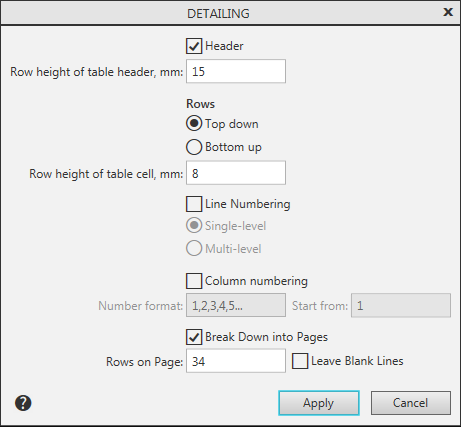
Description of Controls
The element |
Description |
|
Header |
The option allows you to control the placement of column headings in the report. If this option is enabled, then on each page of the table a row is placed with the headings specified in the Column name field of Report Style Parameters dialog. The row height is displayed in the Row height of table header, mm field. If the option is disabled, the line is not available. |
|
Row height of table header, mm |
The field for entering the height of the table header. Available when the option is on Header. |
|
Rows |
A group of elements allows you to control the placement of lines in a report. If the Top down option is enabled, the title and lines follow the order from top to bottom. If the Bottom up option is enabled, then the title is placed on the bottom line and the lines follow the order from the bottom up. |
|
Row height of table cell, mm |
Field to enter the height of rows. |
|
Line Numbering |
The option allows you to control the line numbering. If this option is disabled, there is no column with numbers. If this option is enabled, the first column is automatically added to the table with the title "N" and line numbers. Single level or multilevel numbering is performed, depending on the selected option. |
|
Single-level |
Numbering option, when selected, all the lines in the report are numbered consecutively in increasing order. Option selection is available if the Line numbering option is enabled. |
|
Multi-level |
Numbering option, when selected, the lines are numbered inside each level separately. Performed for models containing components. For example, in the assembly, the components of the first level will have the numbers 1, 2, 3, ..., and the components included in them will have the numbers 1.1, 1.2, 1.3, ..., 2.1, 2.2, 2.3, ..., 3.1, 3.2, 3.3, etc. Option selection is available if the Line numbering option is enabled. |
|
Column numbering |
The option allows you to control the column numbering. When the option is disabled, the line with numbers is missing. If this option is enabled, the first row with column numbers is automatically added to the table. Numbering is set with the parameters specified in the fields Number format and Start from. |
|
Number format |
A list from which you can choose the number format – letters or numbers. Available when the Column Numbering option is enabled. |
|
Start from |
The field for entering the starting number in the column numbering. Available when the Column Numbering option is enabled. |
|
Break Down into Pages |
The option allows you to manage the pagination of the table. If this option is enabled, the table is automatically divided into several pages with an equal number of lines in each. The number of rows is displayed in the field Rows on Page. By default, there are no empty rows on the last page. If this option is disabled, the report is a single table. |
|
Rows on Page |
Field to enter the number of rows of the table on one page. Available if the Break down into pages option is enabled. |
|
Leave Blank Lines |
The option allows you to set the last page view. Available if the Break down into pages option is enabled. If Leave blank lines option is on, the last page may display lines after the last object, which remains empty. |
After setting the detailing parameters, click Apply. To exit the dialog without saving changes made, click Cancel.
