|
Editing objects and deleting leaders |
Scroll |
Editing an object with a leader
When you select an object with a leader, the object defining points and leaders are displayed (see the Figure). To edit the object, you can use the displacement and rotation points. The attachment point of the leader will remain connected to the object. The leader itself behaves exactly like a regular leader line when the start point of the landing is moved - it elongates, shortens or rotates.
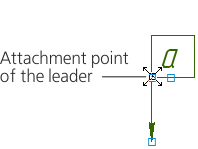
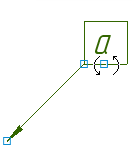
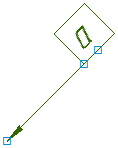
Example of editing an object with leaders
(the attachment point of the leader to the object matches with the displacement point)
To edit an object with a leader, move the defining points of this object using your mouse.
•To change the position of branches, select the object and displace the defining points.
•To change the configuration of a leader, double-click it and add or remove points or branches. Details...
|
After the macro-element is exploded, its leader transforms to a normal leader. |

To delete the object leaders, please use the Delete Leaders command.

This command is available in the shortcut menu if the selected object has a designation created using the Object Leader.
This command results in deletion of all the leaders of the selected object.
If a macro-element has several leaders, you can delete one of its leaders. To do this, enter the Macro-element editing mode, select the leaders to be deleted and press <Delete>.
