|
Insertion of expression elements |
Scroll |
As elements of the expression, system functions, constants, operators, whole expressions, curve functions, and variables can be inserted.
Insertion of elements of an expression is performed using the Expression dialog (see Figure).
To call the dialog, press the Insert function  button in the header variables toolbar or select Insert function in the right-click menu of the row with a variable.
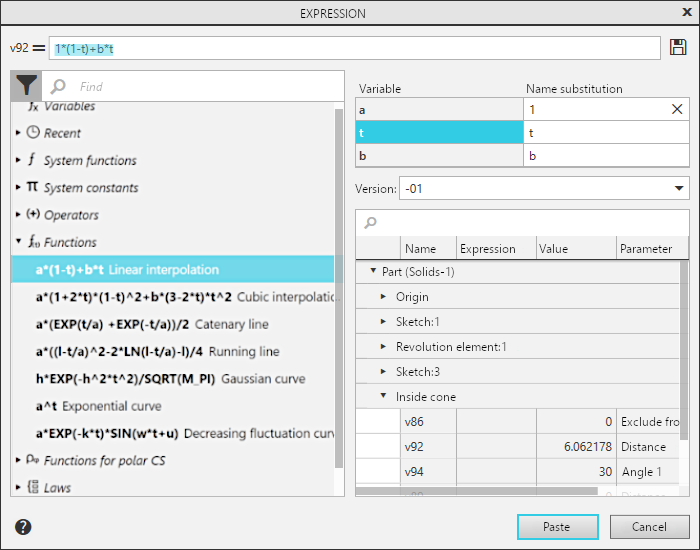
The dialog contains a list of expression elements available for insertion. They are merged into groups. The dialog also contains a table with the variables of the current document that can be inserted into the expression.
At the top of the dialog, there is a field for composing the resulting expression. To the left of the field, the name of the variable to which the value is assigned is displayed. The field is filled automatically on selection of an element of the expression or a variable. The selected object is added to the place of resultant expression in which the cursor was placed at the moment of addition. If at this moment, a fragment of the resultant expression is selected, then it is replaced with the element being added. You can also enter characters into the expression from the keyboard or paste them using the clipboard. The field content is retained until the dialog is closed.
If an expression with variables is selected for insertion, a list of variables is displayed as a table in the upper right corner of the dialog. This table allows you to assign arbitrary names to variables. To assign a name to a variable, click a cell in the Name substitution column, enter the required name and press <Enter>. This name will be used to designate a variable in the resultant expression. If it is required to return the default name to a variable, press the Restore default name button  in the right part of the cell.
You can save the resultant expression in the file of collection of mathematical expressions collection.law. To do this, click the Save Expression  button on the right side of the field with the expression.
The expressions written in a collection file are automatically added to the From collection file group in the dialog and can be used for insertion. Actions with expressions from the collection file are similar to actions with expressions and their elements which are contained in other groups in the dialog.
You can insert the variables that have already been used in the current session with the dialog from the Variables group into an expression. And from theRecent group – elements of expressions last used in the current session (each group can store up to seven objects).
To insert the resultant expression, on the Variables toolbar, press the Paste button. The Expression dialog closes, and the generated expression appears in the Expression cell for the edited variable.
|
When inserting functions of curves, note the following. Functions of curves are represented in the dialog by expressions of functions for the coordinates of X, Y, Z. It is necessary to insert function expressions separately for each coordinate. For example, to insert an expression for the circle evolvent, it is necessary to first insert an expression for the calculation of the coordinate X by selecting the respective row and pressing the Paste button. Then, reopen the dialog and insert an expression for the calculation of the coordinate Y. When selecting of a row with the function name (in the example in question – the Circle evolvent), into the resultant expression are included expressions for calculation of all the coordinates and additional symbols. An expression in this form can’t be used to get a value of variable. It needs to be edited. |

See Also
