|
Configuring position of a component with symmetrical placement |
Scroll |
When this method Symmetric component placement  is selected (see section Selecting the method of component mirroring), the Position group of elements becomes available.
To set the position of the component, use the following methods:
•Specifying a flat or point object that is the plane or center of symmetry of the original component. This method is used for individual components.
•Base component selection. This method is used to add an arbitrary set of components while maintaining their relative position.
After selecting the desired object (component), the phantom of the component (or multiple components) being added changes its position. The description of the selected option is shown in the dialog of the Component position column cell. You can view the entire list of options by clicking in the cell.
The rest of the section describes in detail the various ways of specifying the component position, as well as the list of options for objects and working with it.
Using the plane/center of symmetry
|
If the Symmetric component placement method is selected for a component, then all the components included in it are also placed in this way. These components are no longer displayed in the dialog. |

Using the plane/center of symmetry
When specifying the plane/center of symmetry of the original component, the position of the component being added is determined as follows.
Let the plane of symmetry, relative to which the component is placed, is P, and the symmetry plane of the component is S. There are the straight intersection line of planes R and S and the angle φ between these planes.
If the planes are not parallel, the position of the added component is determined by rotating the original one around the straight line of intersection of the planes by an angle of 2φ (Fig. a).
If the planes are parallel, the position is determined by moving the source component in the direction of the plane P by a doubled distance between the planes 2h (Fig. b).
Moving is also performed if the component’s symmetry center is selected, not the plane. In this case, the component is moved to twice the distance between the plane P and the center of symmetry.
|
|
a) |
b) |
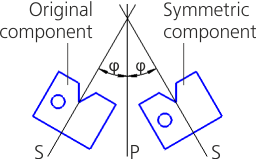
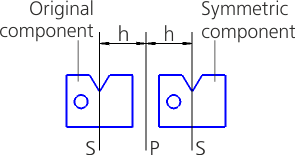
Placing a component using its plane of symmetry:
a) the plane of symmetry of the component is not parallel to the plane of symmetry of the operation;
b) the plane of symmetry of the component is parallel to the plane of symmetry of the operation
You can specify the plane/center of symmetry of the component both automatically and manually. For an original component with symmetry, the automatic way of specifying the object is preferable, and for an asymmetric component it is more efficient to specify the object manually.
executed using the Previous Position  and Next Position
  buttons. Each time you press one of these buttons, the system suggests an object of the source component that is included in the predefined list (the list is described in section View and change settings). Variants are cycled.
The selected option is displayed:
•on the dialog's toolbar — in the field between the buttons of automatic object selection,
•in the component row for which the setting is made — in the cell of the component position column.
1.Press the Select plane or point in a component  button.
This will start the process of specifying the object. The mirroring settings dialog will no longer be displayed. On the screen, there will appear the source model window of the source component, allowing you to select the object you need.
2.Specify the desired object.
The position of the component phantom in the model graphic area will change. The name of the selected object is displayed in the Object field on the Parameter Panel. If necessary, you can re-select the object by specifying it in the Source Model Window.
3.To complete the selection, click the Apply  button in the Parameter Panel header.
The mirroring settings dialog will reappear on the screen. The selected object will be used to calculate the position of the component. A new variant will be added to the list of object variants for this component.
|
Manual specification of a plane and a point object is available for components of the first level assembly. For components of all other levels, you can only select a plane. |
In this section, base component means a component relative to which the position of all selected components is being kept.
The selection of the base component is used if you need to add multiple components to the model as a whole, i.e. keeping their mutual arrangement. One of the components of the model is used as the base component. The components, the relative position of which you want to preserve, are selected as a single group (the base component is not included in this group) and are arranged using the Symmetric component placement method relative to the base component, which is selected from the remaining components of the model.
In fact, the calculation of the symmetric position is performed for only one component – the base one, and the components placed relative to it are moved in such a way that their position relative to the base component remains the same as the original components.
A component can be used as the base one if it satisfies the following conditions:
•is placed using the Symmetric component placement,
•it is included in the same source component and located at the same level as the components selected to be placed by the base one, but is not selected along with them.
Procedure for setting a base component
1.Specify the components that you want to place symmetrically while maintaining relative positions. These components must be on the same level in the Design Tree. The component that is intended to be used as the base one should not be selected.
2.Press the Specify Base Component  button on the toolbar of the dialog. The Base component selection dialog will appear on the screen. The dialog contains the list of components, each of which can be the base for the specified components.
3.Select the base component.
By default, the base component is the component that is in the top row of the list. A checkmark will appear next to its name. To make another component the base one, double-click the line which contains this component in the list, or select it in the list and click the Select base component  button.
4.To complete the dialog, click OK.
The dialog will close. The position of these components will be determined relative to the base one. A new variant containing the name of the base component will be added to the object variant list for these components.
To calculate the position of the added component (or multiple components), the selected object is used. Such an object can be the plane/center of symmetry of the original component, or the base component.
Information about the selected object is contained in the cells of the Component position column and in the dialog toolbar field between the buttons Automatic object selection.
If necessary, you can view all object variants which you can use for a component, and select the appropriate one. To do this, select the desired component and click the field on the toolbar or in the corresponding cell of the column Component Position. A list of object variants used to calculate the position of the component will appear on the screen (see figure).
|
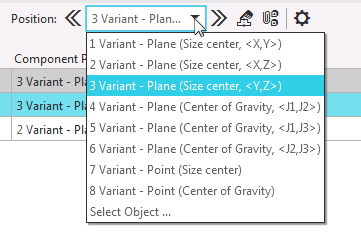
View the list of object variants

The list allows you to change the object used to calculate the position of the component. Both predefined variants and the variant formed as a result of manual object selection (the ninth row in the list) are available.
Besides, you can go to manual object selection by clicking the Select object row.
|
If you need to select a different object for a group of similar components, expand the list of objects in the row of the group itself. In this case, you cannot go to the Manual objects selection. For more details on groups of components... |
|
To select the plane/center of symmetry, you can use both the list and the buttons Previous/Next position of the Toolbar Panel (see section Using the plane/center of symmetry). If you need to select another base component, use the Select base component button on the toolbar (see section Using the base component). |
