|
Mirroring parameters |
Scroll |
The parameters of mirroring and symmetrical insertion of components are set in the Component mirroring parameters.
|
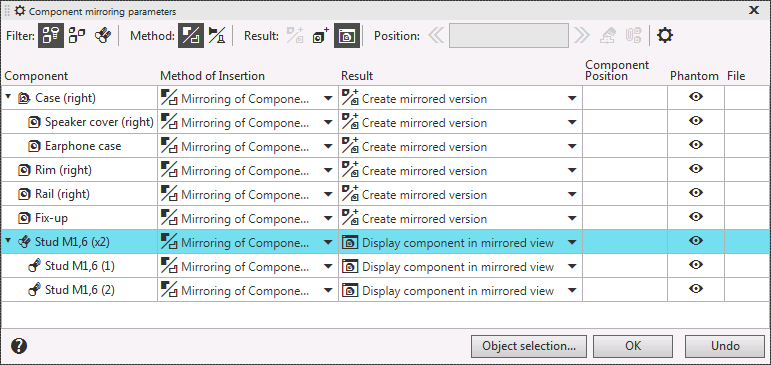
Component Mirroring Parameters dialog
The dialog contains a toolbar and a list of model components selected as the original ones for the operation. The order of the components in the dialog corresponds to the order in which they are displayed in the Design Tree.
The operation parameters are configured using the toolbar controls. You can configure the parameters separately for each component or for multiple components at once, by selecting them in the dialog table.
You can manage a set of components displayed in the dialog using the filters.
The list of components is displayed as a table. The table cells contain information about the specified settings and allow you to change them. To change the settings for the selected component, click in the appropriate cell and select the desired option from the list that appears. For example, the selected method of mirroring the components is shown in the cell of the column Insertion Method. You can change the method using the list in this cell.
To change most of the mirroring parameters, you can use both the toolbar items and the table cells. Some parameters can only be changed using the table. For example, you can only manage display of component phantoms using the cells of the column Phantom 
 .
.
Display of several insertions of the same model in the dialog
If components have the same source file, they are combined into a group similar to the branch of identical components in the Design Tree. The row of the component group in the dialog is displayed in dark gray. For example, in figure, such a group consists of two stock products Screw A.M1,6-6gx3 GOST 17475-80.
If all components in the group have the same mirroring parameters, they are shown in the row of the group. The cells in the following columns are an exception.
•Phantom:
•if display of phantoms for all components in the group is disabled, then the icon in the cell of the group corresponds to the disabled state ;
•if the display of the phantom is enabled for at least one of the components, then the icon of the enabled phantom is shown in the group cell.
•File — the cell in the row of the group is always empty.
The change of the parameter value in the row of the group is transferred to all group components. You can specify different parameter values for components of the same group, if needed. In this case, the cells in the row of the group will be empty.
