|
Multiline Limiters |
Scroll |
The final segments of an unclosed multiline can be shaped. The Limiter 1 and Limiter 2 switches in the Lines and limiters section on the Parameter Toolbar are used for this purpose.
To form multiline limiters, follow these steps.
1.Set the Limiter 1 (Limiter 2) toggle switch to position I (enabled).
2.Select the type of limiter by clicking the desired button in the Limiter type group:
 Straight-line,
 Arched,
 Broken.
3.Set the height of the limiter in the Dimension, % field. The value is set in the range of 0 to 100 % of the multiline width.
4.If necessary, set the limiter line style. To do that, expand the Style 1 (Style 2) list and select the required line in it. More about selecting line style...
|
|
a) |
b) |
|
|
c) |
d) |
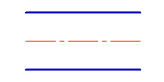
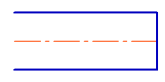
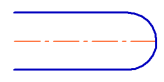
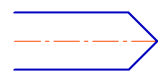
Multiline Limiters
a) without limiter, b) Straight-line, c) Arched, d) Broken
If the drawing style of the straight limiter differs from the style of the extreme lines of the multiline, then depending on the height value, the limiter looks as shown in the figure.
|
|
a) |
b) |
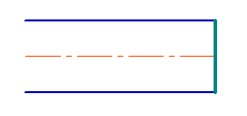
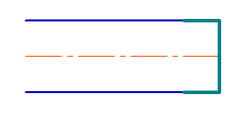
Straight-line limiter
a) with zero height; b) with a height greater than zero
The default view and parameters of multiline limiters for new or current documents are specified in the Multiline dialog.
|
After editing a multiline, the delimiters may no longer appear in the document. This occurs in the following cases: •there is one line in the multiline; •in the multiline no extreme line of the multiline is displayed. Information about limiters that are not displayed is stored in the multiline. |

