|
Global and local snaps |
Scroll |
The list of commands of global and local snaps used in KOMPAS-3D is provided in the table.
Global and local snap commands
Name |
Description |
|
|
Nearest Point |
Snap to the characteristic point of an object (e.g. to the initial point of line) or to the origin of the current coordinate system. |
|
Midpoint |
Binding to the object midpoint. |
|
Intersection |
Binding to the objects intersection. |
|
Tangency |
A snap to the point of the existing object which is touched by the created object (e. g., a segment, an arc, etc.). |
|
Normal |
A snap to the point of the existing object which is intersected at a straight angle by the created object (e. g., a segment). |
|
By Grid |
Binding to the point of auxiliary grid in the graphic area of the current document tab (with the grid being enabled or disabled). |
|
Alignment |
When you select this snapping method, the new object point will be aligned vertically and horizontally relative to characteristic points of existing objects and the last fixed point. Alignment is performed without considering the slant angle of the local coordinate system. |
|
Angular Snap |
When you select this snapping method, the cursor will be moved relative to the last fixed point at angles multiple of the value specified during the snaps setting. Angles are counted in the current coordinate system. By default, the increment of the angular snap equals 45°. |
|
Center |
Snap to the central point of a circle, ellipse, arc of a circle or ellipse, rectangle, and a regular polygon. |
|
Point on curve |
Snap to the nearest point of a specified curve. The nearest point will be defined as an intersection of the curve with its normal drawn from a specified point. |
|
Not specified |
No enabled snaps. |


The snap is performed as follows.
In the course of creation or editing a graphic object, set the cursor so that its "trap" grasped the object (or a point) to which it needs to be snapped. For example, to use the Nearest Point snap, it requires to capture characteristic point of some object; to use the Center snap, you need an arc, a polygon, or another object that has a central point.
At the point matching the snap, a "cross" will appear, which means the snap has actuated. If display of snaps is enabled, the corresponding icon will be displayed nearby (see the figure).
|
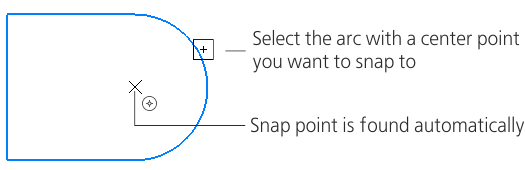
Usage of the Center snap to indicate the center of a hole
To end the snap, press <Enter> or click the left mouse button. The point marked with a "cross" will be fixed.
|
When you use global snaps, the highest priority snap is performed. |

