|
Practices of handling defining points |
Scroll |
You can change the configuration and position of an object by moving one its characteristic point or another.
|
This section describes working with defining points when changing objects without starting the editing process. If the editing process is launched, then the defining points are displayed only for dimensions and some designation and have a different appearance. |

To start editing an object, click it with the mouse.
In this mode defining points are displayed as small dark blue squares, and the object is highlighted.
|
|
|
|
|
a) |
b) |
c) |
d) |
e) |
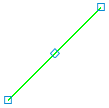

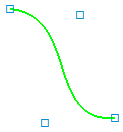
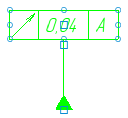

a) line segment, b) circle, c) spline, d) geometric tolerance, e) text
Defining points of an arc are supplemented with dark blue triangular icons, moving which changes only the arc radius.

Defining points of an arc
When hovering over a characteristic point, the cursor takes the following shape:
 — if the characteristic point can be displaced arbitrarily,
 — if displacement of characteristic point is restricted or if it can have only several defined positions,
 — if moving a characteristic point results in the rotation of the object or its part.
If you select several objects and their defining points coincide, they are displayed as one common characteristic point. When you move the common defining point, the corresponding defining points of each object move too. Displaying of common characteristic points can be set.
To move a point, you can use the following methods:
•Dragging and dropping the point of the selected object using the mouse,
•Activating a point and specifying its new position.
Methods to move characteristic points are described below.
To cancel selection of the object after moving the characteristic points, click outside the image of that object. Canceling the object selection stops displaying of its defining points.
