|
Activating a point and specifying its new position |
Scroll |
To activate a characteristic point, move the cursor to it and click the left mouse button or press <Enter>.
After activation, the process of shifting the characteristic point will launch. The Parameter Toolbar displays the point position controls.
The graphic area displays the point in the original position and the phantom of the object being edited. When you move the cursor, the object is rebuilt, next to the cursor the values are displayed for parameters of shifting relative to the original point position.
Specify the new point position using one of the following methods:
•click with the mouse in the desired place of the document,
•set the shift parameter values on the Parameter Panel,
•move the point using the arrow keys and fix the point.
•enter the cursor coordinates in the Cursor coordinates fields on the Quick Access Bar and fix the point.
You fix the point by clicking with the mouse or pressing <Enter>.
When specifying the point position, you can use Snaps and geometrical calculator.
You can limit movement of the point, by fixing the necessary parameter on the Parameter Toolbar. For example, to shift the point in the X axis direction, set a zero value in the Y coordinate field and fix it. The graphic area will display a phantom of the straight line along which you can move the point.
|
You can quickly extend or trim a line segment without changing its slope angle. To do this, in the Angle field of the Parameter Panel invoke the Line/Segment Direction command of the geometrical calculator. Specify that segment as the object to measure, then set the new point position. |

After you fix the point, the shifting process will be automatically completed.
|
|
a) |
b) |
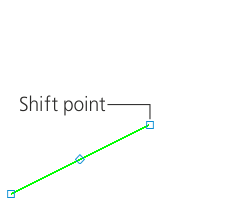
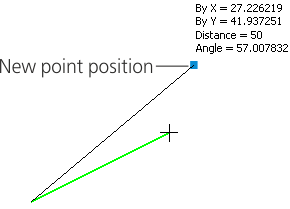
Distinguished Point Shift
a) the original image, b) displaying of parameters
