|
Dragging and dropping the point of the selected object using the mouse |
Scroll |
To drag and drop a defining point, move the cursor to it, click the left mouse button and move the mouse without releasing the button. The defining point will follow the cursor. If the desired point position is reached, release the mouse button.
If the filletwhen moving a characteristic point of the object, the change of its linear and angular parameters occurs discretely — with a step equal to the cursor step. Current parameter values are displayed near the cursor. The background of labels near the cursor can be set up.
If you set the cursor at the defining point, press the mouse button and do not move the mouse for a second, the graphic area will display auxiliary trajectories. Moving a defining point along the auxiliary trajectory changes only one parameter of the object (see figure).

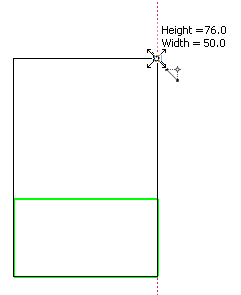
a) the starting position of a characteristic point,
b) dragging and dropping the defining point along the path.
If dragging and dropping of the defining point moves the cursor away from the auxiliary trajectory, its image disappears from the graphic area.
To keep auxiliary trajectories always displayed while dragging key points, press and hold the <Ctrl> key.
To disable the display of auxiliary paths when dragging anchor points, press and hold the <Alt> key.
Auxiliary trajectories are displayed during editing:
•a line segment,
•multilines,
•arc,
•an ellipse, an elliptical arc,
•a rectangle.
