|
Hyperlink to file or web-page |
Scroll |
Creating a hyperlink to a file or web page is done by pressing the File, webpage button in the left part of the dialog (see figure).
|
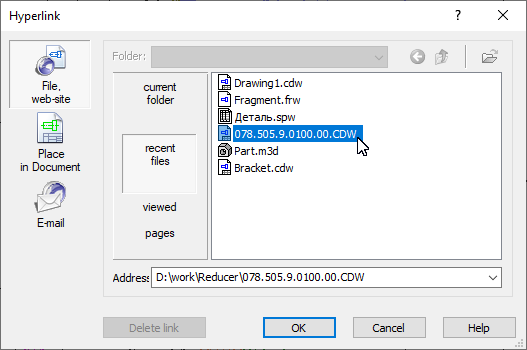
Dialog for creating a hyperlink to a file or web page
If you want to create a hyperlink to a file or folder, click Current folder. Select the target object — a file or folder — in the folder contents view window. You can change the current folder using the Folder list and the Back and Up buttons.
To select a target object from the standard file open dialog, click the Open  button located at the top of the Hyperlink dialog, and open the desired file.
If you want to create a hyperlink to one of the last files, click Recent files and select the desired file.
If you want to create a hyperlink to one of the last viewed web pages, click Pages Viewed and select the desired web page.
After selecting the target object, the path to it or its address will appear in the Address field. You can enter the path (address) from the keyboard or select it from the Address drop-down list the path (address) used in the current KOMPAS-3D session.
Click OK. The button is available if the Address field is filled.
After creating the hyperlink, the tooltip contains the path to the file (folder) or web address.
When a hyperlink is activated, folders are opened in Windows Explorer, files with an application associated with a given file type in Windows, and web pages in a web browser.
