|
Section Connection Path |
Scroll |
The same sections can be connected in various ways. You can make the path closed or open, as well as specify the path between the sections.
The path of the sections connection can be closed or open-ended. To select the desired version, use the Close Path option. When this option is enabled, the sections specified first and last are connected.
•If the guiding line is not used, the Close Path option is available if more than two sections are specified.
•If the guiding line is used, the option is not available. In this case, if the guiding line is closed, the option is enabled; if it is open, the option is disabled.
|
|
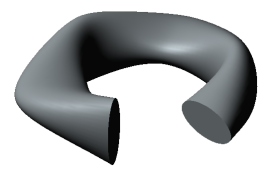
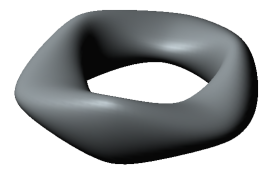
Open and closed elements, constructed with the same sections
Setting section points to be connected
Section points that are connected when constructing an element are automatically determined.
If necessary, you can manually specify the connected section points. To do this, use the elements located in the Connection section.
To set the connecting points, press the Add Chain  button (the button is present on the Parameters Panel if two or more sections are specified). It will start the chain creation subprocess. Specify the positions of the chain points on each section in the graphic area.
Create the required number of chains.
A list of created chains is displayed in the Chains field. The selected chain in the list is highlighted in the graphic area. If you want to display all the chains on the phantom, enable the Show all in model window option.
To edit a chain, use one of the following methods:
•Select the chain row in the Chains field and press the Edit chain button  (the button appears after the chain is selected in the list); this method initiates the chain creation subprocess,
•change the positions of the chain points by dragging them in the graphic area.
|
|
|
|
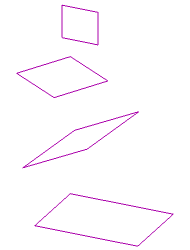
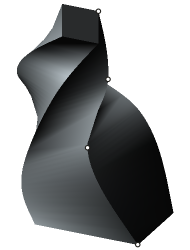
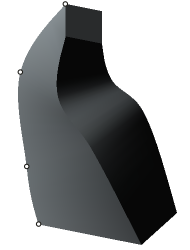
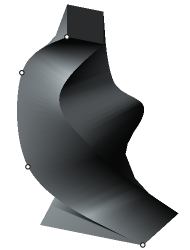
Elements formed by connecting different points of identical sections
(connected points are highlighted)
