|
Creating a property library |
Scroll |
You can create a property library in the Property Management dialog.
To create a library, do the following.
1.Press the Show Library  button.
2.In the dialog that appears, specify or create the folder where the new library will be located.
3.Enter the name of the new (yet–nonexistent) library and click Open.
4.Answer Yes to the system prompt for creating a new file (see figure).
The active property management dialog box window becomes empty, as the newly created library has no content yet.
|
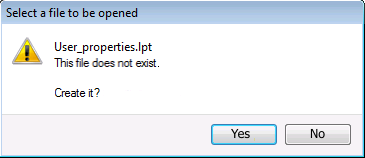
Prompt to create a new library file
5.To create a new section in the library, click the Create Section  button and enter the section name in the dialog that appears on the screen. In the same manner, create all the required sections and subsections.
6.Create the required properties using the Create Property  button. For detailed information on how to create properties, see section Property creation.
If necessary, you can edit and delete the library sections and properties (see sections Property changing and Property deletion).
The Copy to the right  /to the left
  button allows you to copy existing properties to the library.
The Move right  /left
/left  allows button allows you to move them.
To perform these actions, open the required source of properties to be copied (transferred) in an adjacent preview window and select the property.
The source may be the current document or the property library.
•When choosing a document, you can not only copy (transfer) this document's properties but also copy properties of insertions it contains.
•When choosing a library, you can copy (transfer) both properties and sections of this library.
|
System properties of documents cannot be copied and transferred. |

