|
Property Management |
Scroll |
To work with document properties and property libraries, use the Property Management dialog, which is invoked by the Property Management... command.  .
.


In this dialog box you can create new properties for the current document or edit existing properties, perform various operations with property libraries, enable/disable display of properties in the current document.
The dialog box contains two preview windows. To perform actions in one of the windows, click it to activate. Buttons located between the windows will become available for work in the active window.
Only one window can be active — it is selected with a frame. For example, in this figure the right window is active.
|
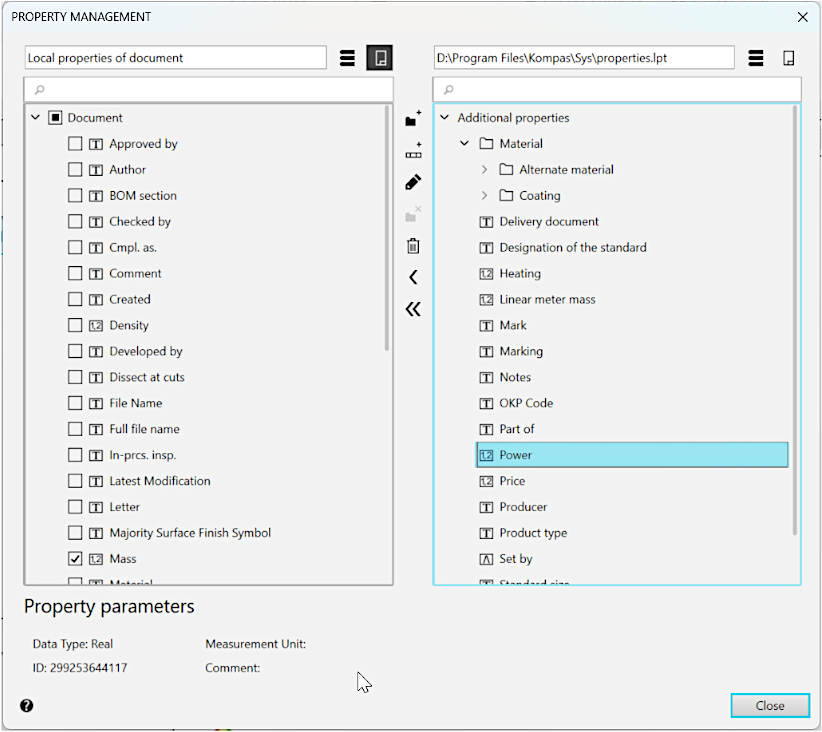
Dialog box for managing properties in an assembly
Each preview window allows you to display the list of the current document properties or of the selected property library.
To display the document properties, use the Show Document  button; to display the property library, use the Show Library
  button.
The above figure shows the variant when the Local Properties of Document list (properties of the current document) is displayed in the left preview window, and the properties list from the selected properties library properties.lpt is displayed in the right preview window. The list of library properties may contain sections and subsections.
The list of properties of the current document is presented as a Tree, which, depending on the document type, contains one or two property groups.
For a detail, drawing, or fragment, this is the Document group, which displays the list of the current document properties.
For an assembly, drawing, or fragment containing inserts, it is the Document and Components (or Insertions) groups. The group Components contains a list of properties of first-level components of the given assembly, while the group Inserts (for a drawing or fragment) contains a list of properties of view inserts and fragments. In groups Components (or Insertions) only display properties that differ from the document properties. In the drawing, within the Insertions group, properties of the model based on which the associative view was created are also present.
Each property in the list of properties has a corresponding name and icon. Symbols on the icon show the type of the property value:
•the T symbol for the String value type,
•the L symbol for the Logic value type,
•Symbols 1,2 correspond to value type Integer or Real.
The enabled option next to the property name means that this property is displayed in the document.
When you select a property in the list at the bottom of the dialog box, the property parameters are displayed: Data type, Unit of measurement, Identifier and Comment.
For a detailed description of the dialog controls for managing properties...
In the Property Management dialog, you can form a list of properties for a document (or library) — create new properties, modify, and delete existing ones. You can add properties from an existing library to a document (or to a library) or To create a new property library.
