|
Changing style of existing objects |
Scroll |
You can change the style of a point, curve, or hatching in the contextual panel that appears after selecting an object (or several objects). Expand the list of styles and select the desired one from it, see the Figure.
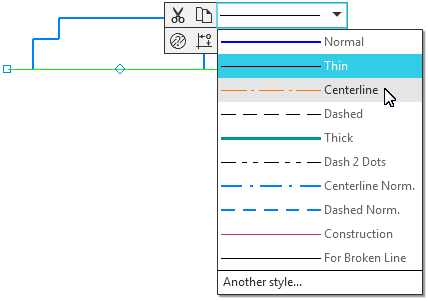
Changing the style of an object in the context bar
If objects of different types are selected, for example, curves and shading, then there is no list of styles on the context panel. In this case, you can use the command Change style... It is available in the context menu of selected objects and in the menu Edit.
After running the command, the Change style dialog. The number of dialog tabs depends on which types of objects (curves, points, hatching, texts) are highlighted.
Set the required parameters in the dialog and confirm the replacement of styles.
