|
Change Styles of Selected Objects dialog |
Scroll |
This dialog is used to specify which styles of the selected objects (curves, points, texts and hatches) should be replaced, and select the styles to replace them.
The dialog appears on the screen after calling the Edit — Change Style... command.

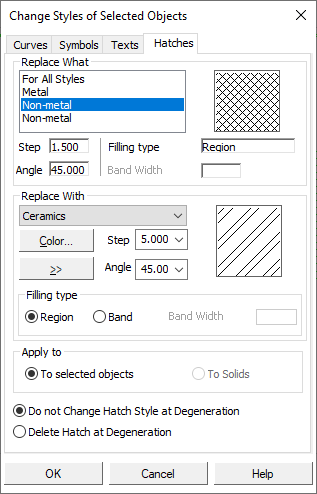
Depending on which objects are selected, the dialog may contain the following tabs:
•Curves — serves to modify the styles of curves,
•Symbols — is used to change the styles of points,
•Texts — serves to change text styles,
•Hatches — serve to modify hatch styles.
Elements located on the tabs are shown in the table.
Controls of the tabs Curves, Symbols, Texts
The element |
Description |
|
Replace What |
The field contains the name of the style of the selected objects (for example, Primary for curves). Next to it there is a preview field that shows a sample of this style typeface (this field is available on the Curves and Symbols tabs). If the selected objects have different styles, the field displays a list of all these styles. By default, the option For all styles is selected in the list. This means that the same style will be assigned to all selected objects, even though they originally had different styles. When objects are selected (for example, by marquee), there may be some objects among them that do not need to be changed. The styles of these objects are also included in the dialog list. In this case, select the styles in the list that need to be replaced. When one style is selected, its preview is displayed in the preview field, when several styles are selected, the field remains empty. |
|
Replace With |
The list contains styles available in the document. You can select a style for replacement in this list. In the preview field, a sample of the selected style typeface will be shown (this field is available on the Curves and Symbols tabs). |
|
Button (>>) |
This button allows to select a style that is not included in the active document. Present on the Curves and Texts tabs. After you click the button, the object style selection dialog box will appear on the screen. |
Controls of the Hatches tab
The element |
Description |
|
Group Replace What |
||
Style field Style typeface preview field |
The field contains the name of the hatch style for the selected areas. Next to it there is a preview field that shows a sample of this style typeface. If the selected areas have different styles, the field displays a list of all these styles. By default, the option For all styles is selected in the list. This means that the same hatch style will be assigned to all selected areas, even though they originally had different styles. When areas are selected (for example, by framing), there may be some areas among them that do not need to be changed. The hatch styles of these areas are also included in the dialog list. In this case, select the styles in the list that need to be replaced. When one style is selected, its preview is displayed in the preview field, when several styles are selected, the field remains empty. |
|
Step Angle Filling type Band Width |
Reference fields. Contain the values of parameters of the hatch style selected for replacement. In the case of selecting multiple styles or the For all styles option, the fields remain empty. |
|
Replace With group |
||
List of styles Style typeface preview field |
The list contains hatch styles available in the document. You can select a style for replacement in this list. The preview field shows a sample of the selected style typeface. |
|
Color... |
This button allows you to select the hatch color. After clicking the button, a color selection dialog box appears on the screen. |
|
Step Angle |
The fields allow to change the hatch step and angle values, respectively. You can enter the value manually or select it in the dropdown list. |
|
Button (>>) |
Allows you to select a style that is not in the active document. After you click the button, the dialog for selecting the object style will appear on the screen. |
|
Advanced on the Hatch tab |
||
Step Angle |
Allows you to change the values of the hatch parameters. |
|
Color... |
Allows you to select the hatch color. After you click the button, a color selection dialog will appear on the screen. |
|
Region Band |
Allow you to select the fill type for the hatch borders. |
|
Band Width |
Allows you to set the width of the fill bar. The field is available if the option is selected Band. |
|
Apply to |
Allows you to select a way to change the style. |
|
To selected objects |
When choosing option Selected Objects styles are replaced with all selected hatch (option by default). |
|
To solids |
When choosing an option To Solids replaced at the same time •selected hatch styles; •styles of not selected hatches in all the associative views for all those solids whose styles fell within the group of selection will be changed. The choice is available if at least one hatch is selected, the parameters of which are obtained from the model. |
|
Do not Change Hatch Style at Degeneration Delete Hatch at Degeneration |
Allows you to select the option to display the hatch in the case of its degeneration when changing style. |
|
|
Styles (except text styles) are displayed in the view fields, which allows you to quickly select the desired replacement option. |
|
