|
Equidistant Line |
Scroll |
The equidistant of the curve or contour is built by the Equidistant  command.

Step-by-step instructions
1.Specify the object, equidistant of which you want to build. The name of the object is displayed in the Object field on the Parameter Panel.
If the object is a sequence of intersecting geometric objects or their parts, construct a contour. To that end, click Assemble contour  to the right of the Object field. More information about contour construction...
After specifying the source object, the equidistant line phantom will appear in the graphics area.
2.Select the option to build equidistant – from one or two sides of the object. To do this, use the On both sides toggle switch.
•Toggle switch in position 0 (disabled) – one equidistant line is built on one or the other side of the object.
To create a new equidistant line, you have to choose the required side in the graphic area using the mouse.
You can change the side while editing an existing equidistant line by clicking the Swap Side  to the right of the Indentation field.
•Toggle switch in position I (enabled) – two equidistants are built (one on each side of the object). Perhaps a symmetrical and asymmetrical arrangement of equidistant. The desired option is selected using the Symmetrically toggle switch:
•toggle switch in position I (enabled) – equidistants are located at equal distances from the object,
•toggle switch in position 0 (off) – equidistants are located at different distances from the object.
|
|
a) |
b) |
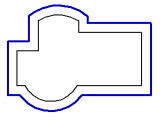
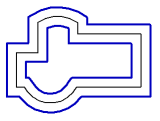
The equidistant line: a) on one side of the object, b) symmetrically on both sides
3.Set the distance from the object to the equidistant line and complete the construction. These actions have features depending on the option of building equidistant.
•On one side of the object – enter the distance in the field Indentation and click on the side of the object where the equidistant should be located.
The construction of equidistant line will be automatically completed.
•Symmetrical from two sides of the object – enter the distance in the Indentation field.
The construction of equidistant line will be automatically completed.
•Asymmetrical from two sides of the object — enter the distance values in the Indentation 1 and Indentation 2 fields (if necessary, these values can be swapped using the Swap button  to the right of these fields).
4.Complete the construction of the equidistant by clicking the Create object button  .
.
5.To complete operation of the command, click Finish  .
.
Additional features when building
•Selecting methods of corner passing. To do this, in the Corner Passinggroup, click the required button:
 By fillet,
 By slice.
|
|
a) |
b) |
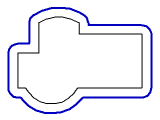
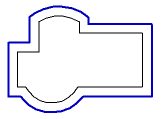
Corner passing: a) by fillet, b) by slice
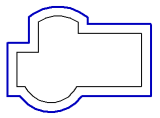
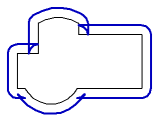
•Deleting/saving degenerate areas of equidistant using the Save Degenerated Segments option. When the option is disabled, degenerate parts are deleted, when enabled, they are saved.
|
|
a) |
b) |
Equidistant Line
a) without degenerate sites, b) with degenerate sites
|
If Save degenerated segments option is enabled, the corners are bypassed only with a cut. State of Corner Passing group buttons is ignored. |

•Selecting equidistant line drawing style.
To select a style, expand the Style list and specify in it the required line. More about selecting line style...
