|
Configuring the properties table on the Product composition panel |
Scroll |
After the Product Composition Panel is expanded, it displays the properties for which display is included in the current document.
To change a column set in the properties table (and a list of properties for the current model, accordingly), click Column Settings  . The list of properties available in the current model will appear. The properties that are already displayed in the Product Composition Panel have a check mark and are located on top of the list. These are followed, after a separator, by properties not displayed in the table. To enable/disable display of a property, click it.
|
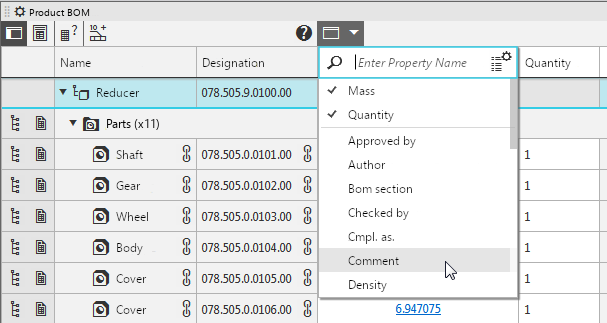
Selecting properties to display in the Product Composition Panel
You can search for properties in the list by entering the required property name in the top row.
The top right corner of the list contains a button which opens the Property Management  . In the dialog, you can create new properties for the document, copy properties from libraries to the document, and enable/disable display of existing properties.
After column setup is completed, click anywhere outside the list.
|
Column settings |

The order of columns in the table can be configured. To move the required column, bring the mouse cursor to its header. The cursor will change its view – it will turn into two black oppositely directed arrows  . Click the left mouse button and, without releasing it, move the mouse in the required direction. When the column takes the required position, release the button.
If it is required to change column width, bring the mouse cursor to the right-hand edge of its header. The cursor will change its view – it will turn into a bilateral arrow  . Click the left mouse button and, without releasing it, move the mouse in the required direction. Once the required column width is reached, release the button.
|
The columns of properties Name and Designation cannot be disabled or swapped. |
