|
Creating attribute types |
Scroll |
Step-by-step instructions for creating a new attribute type are as follows.
1.Run the Settings – Style libraries – Attribute types... command.
On the screen, there will appear the the dialog Use of attribute types.
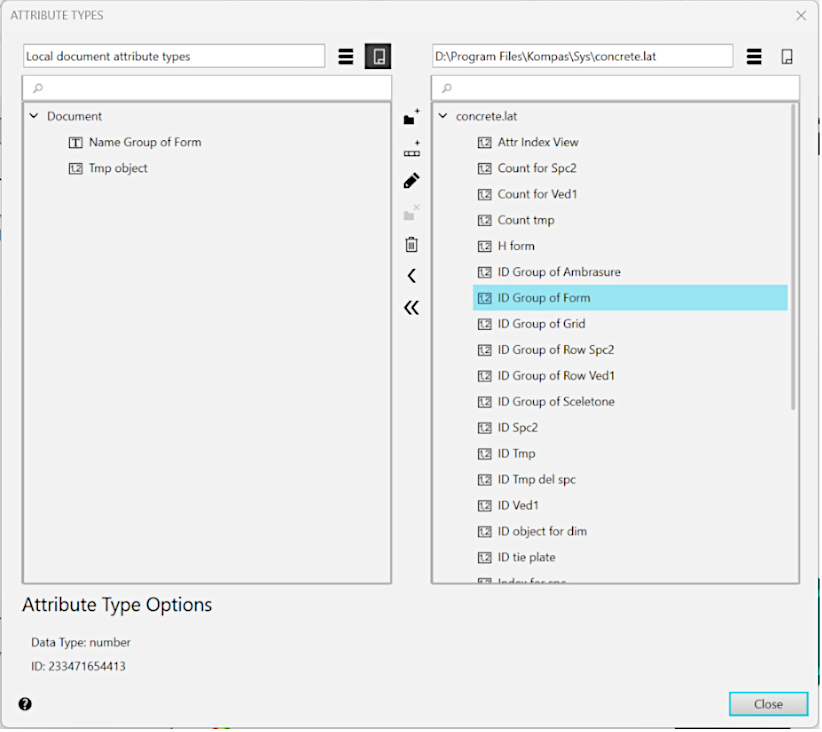
Attribute type dialog
The dialog contains two windows for viewing attribute type lists. Only one viewing window can be active at a time. For example, in the above figure the right window is active. To activate a window, click it.
•To create a new attribute type in the current document, activate the view window that is titled Local document attribute types. If both windows display library attribute types (window titles contain paths to library files), press the Show Document  button. List of attribute types in current document appears in the active window.
•To create a new attribute type in any library, press the Show library  . In the dialog that appears on the screen, choose the required file *.lat and press the Open button. List of attribute types of the selected library appears in the active window. Select the library section to add an attribute type into.
|
You may also create your own library for storing attribute types (see section Attribute type library creation). |

2.Press Create attribute type  button.
Attribute type creation dialog appears.
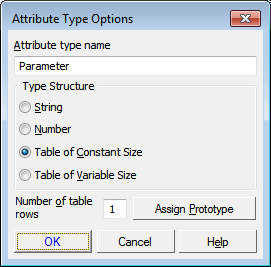
Attribute type creation dialog
3.Enter the name of attribute type being created.
4.Enable the option that corresponds to the structure of attribute type being created.
5.Click OK button in the dialog box.
This completes creation of string or numeric attribute: an icon corresponding to the structure of created attribute type appears in attribute type handling dialog alongside with attribute name.
Table type attribute creation has certain additional points and actions to perform. They are detailed in section Creation of a table type attribute.
