|
Dialog for setting hatch line parameters |
Scroll |
Allows you to customize the parameters of the line that is part of the custom hatch style.
The dialog appears on the screen after pressing the Add button in Group Hatch lines in Create new hatch style dialog.

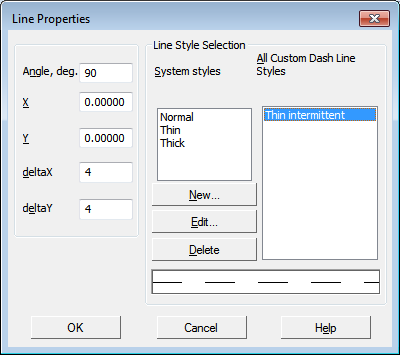
Description of Controls
Name |
Description |
|
Line Positioning Elements Group |
||
Angle, gr. |
Tilt field (in degrees) of the original hatch line to the X axis of the hatch coordinate system. |
|
X, Y |
Fields for input of abscissas and ordinates of the starting point of the source line in the hatch coordinate system. The starting point of the solid line is its arbitrary point, and the dashed line is the starting point of the line in the first combination hatch-space. |
|
deltaX |
The field for entering the offset of the next line relative to the previous one in the direction of the line (for intermittent lines). |
|
deltaY |
The field for entering the step of hatch lines is the distance between adjacent lines. The countdown is perpendicular to the direction of the line. |
|
Line Style Selection Group |
||
System styles |
The list allows you to select one of the system line styles (main, thin or thick) as the line style. System styles cannot be edited or deleted from the list. |
|
All User’s Dash Line Styles |
The list allows you to choose one of the system line styles (main, thin or thickened) as the line style. The list is formed by the user using the buttons New..., Edit... and Delete. It is available only within this hatch style. |
|
New... |
The button allows you to create a new user line style. Available if the active element of the dialog is a list of user styles. Activation is done by clicking on this list. Pressing the button, it opens dialog for creating/editing line style. |
|
|
When creating a line style for hatch, it is not possible to add fragments to combinations hatch-gap, therefore, there are no corresponding elements in the line style creation dialog. |
|
Edit... |
The button allows you to edit the selected custom line style in the list. After you click the button, the line style creation/editing dialog also appears on the screen. |
|
Delete |
The button allows you to delete the selected custom line style in the list. When deleting a custom style, all the lines of this hatch for which this style was applied will be drawn by the system line style Main. |
|
Field of view |
The field contains the image of the appearance of the line selected in the list of system or user styles. |
|

To complete the hatch line style setting, click OK. Click Cancel to discard all changes and close the dialog box.
