|
Detailing options graphical document BOMs dialog |
Scroll |
Allows you to create or edit the style of the graphic document. The detailing includes the external and internal frames of the document, as well as the title block.
The dialog appears on the screen after clicking Create  button or Edit
  dialog. Use of drawing and BOM detailing styles.

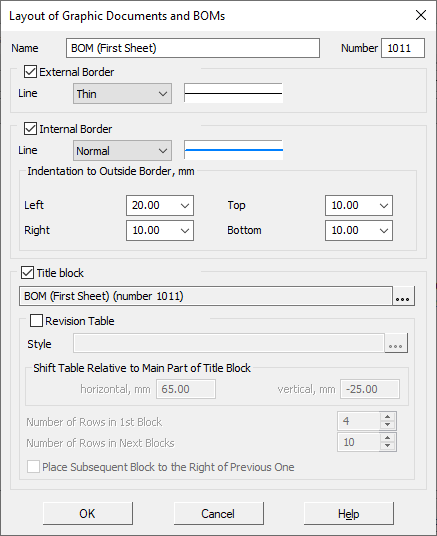
Description of Controls
Name |
Description |
|
Name |
A field to enter the detailing name. Typically, the name contains a brief information about the detailing designation. |
|
Number |
The field to enter the detailing number. The rules for numbering designs are given in section Number of the title block and detailing in the library. |
|
External Border |
This option manages the presence in the detailing of the external border, limiting the format. When this option is enabled, the elements for setting the border line drawing style are available: •list Line – allows you to select the desired line style; •field of view – shows the line appearance of the selected style. |
|
Internal Border |
This option manages the presence in the detailing of the internal border. When this option is enabled, the elements for setting the border line drawing style are available and indents of the inner border from the outer: •list Line – allows you to select the desired line style; •field of view – shows the line appearance of the selected style; •field group Indentations to outside border – allows you to set the amount of indents of the lines forming the inner frame from the outer border; values are entered in millimeters. |
|
Title block |
This option manages the presence in the detailing of the tables of the title block. When this option is enabled, the following elements of the selection of the title block and inclusion in the detailing of the table of changes are available: •Select •title block display field — used to display the name and number of the selected title block; •The option Changes Table allows you to include a changes table in the detailing (see below for more details). |
|
Revision Table |
This option manages the presence in the document detailing of the table of changes as a separate table that is not part of the title block. When this option is enabled, the options for selecting the table style and setting its parameters are available (see below). Work with the revision table is possible if work with a BOM is enabled (see section System control). |
|
Style |
The field to display the name and style number of the change table to be used in the custom detailing. To select the desired style, click the Select In the KOMPAS-3D system, two styles are provided, designed for the change table: revision table. GOST 2.104–2006 and Revision Table with Zones. GOST 2.104-2006. They are contained in the library Graphic. lyt. |
|
Shift Table Relative to Main Part of Title Block |
Fields for entering the offset of the lower right-hand corner of the revision table relative to the upper left-hand corner of the main table of the title block (the main table shall be the first table in the table of title blocks in the Title block). |
|
Number of Rows in 1st Block |
The field for entering the number of records of changes in the first block of the table. For example, so that the revision table does not go beyond the table of the title block of the first sheet of the design drawing, in the first block there should be no more than four lines. |
|
Number of Rows in Next Blocks |
The field for entering the number of records of changes in the subsequent blocks of the table. For example, in order for subsequent blocks of the table of changes in height to be equal to the table of the title block of the first sheet of a design drawing, the number of lines in them must be ten. |
|
Place Subsequent Block to the Right of Previous One |
The option, the inclusion of which means that the next block of changes will be located to the right of the previous one. If the option is disabled, the subsequent blocks are located to the left of the previous ones. |

Click the OK button to complete the detailing setting. Click Cancel to discard all changes and close the dialog box.
