|
Dialog of working with detailing of drawings, BOMs, text documents |
Scroll |
It allows you to create new or edit existing drawings detailing and BOMs/text documents, as well as perform various operations with detailing libraries (they are stored in files with the *.lyt extension).
Depending on the type of document for which the detailing is intended, the dialog appears on the screen after calling one of the following commands on the Setup – Style Libraries:
 Detailing format of drawings and BOMs...,
 Detailing of Text Documents....

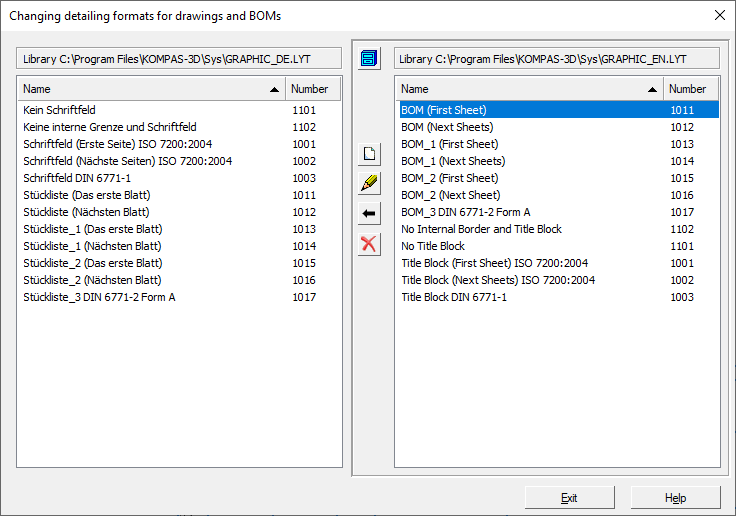
On the panels in the left and right sides of the dialog, you can display lists of detailing types stored in two different libraries. To activate the desired panel, click on it with the left mouse button. A sign that the panel is active is a frame around it.
Layouts in the lists can be sorted by name or number. To change the sorting, click the header of the required column. A triangle is displayed in the column header by which layouts are sorted. Its position indicates the direction of sorting — ascending or descending.
Description of Controls
|
Name |
Description |
|
Show Library |
The button allows you to connect another library of layouts. It calls the Select Library File dialog. |
|
Create |
The button allows you to create a new detailing. Depending on the type of document, the dialog Detailing of Graphic Documents and BOMs or Detailing of Text Documents. When creating a new detailing you can use any of objects already existing in the library as the prototype. To do this, before pressing the button select the prototype object. The dialog that appears after you click the button will contain not the default values but values matching the prototype parameters. |
|
Edit |
The button allows you to edit the detailing selected in the list. It calls the Edit Detailing dialog, similar to the dialog for its creation. |
|
Copy |
Buttons allow you to share layouts between different libraries. To do this, open the necessary libraries, select an item and click the copy button. When copying a detailing from one library to another, the title block used in the detailing is also copied to this library. |
|
Delete |
The button allows you to delete one or more items from the library. To perform deletion, select the items in the list and click this button. |


To close the dialog, click Exit.
