|
Font Settings dialog |
Scroll |
To display the dialog:
•when entering and editing text: call the Font parameters...  command from the Format menu or from the context menu,
•When setting default font parameters in a text, graphic document or report, click the Font... button in the setup dialog,
•When configuring the BOM section: click First Line Font  or Font of the following lines
  (available if header display is enabled).

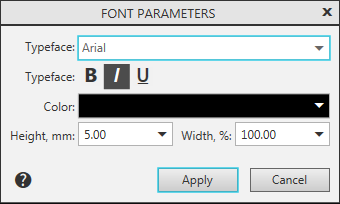
The dialog allows you to assign font parameters that will be used by default when entering the corresponding labels or will be applied to the selected or entered characters.
Description of Controls
The element |
Description |
|
Typeface |
The list allows you to select any font installed in Windows, with the exception of raster. |
|
Different from Default Font |
The option is present in the dialog when defining the default text parameters. When setting the font of the current caption or text of this option in the dialog there. Disabled option means that the item font matches the Default document font. At the same time in the field Font the name of the default font is displayed. Changing the default document font will change the object font. The included option means that the object font differs from the default document font. Changing the default document font in this case will not affect the object. If from the list Font If a font other than the default font is selected, the option is enabled automatically. Turning it off returns the default font. |
|
Typeface |
||
|
Bold |
This button allows to set thick typeface of symbols. |
|
Italic |
The button allows you to set the oblique typeface. |
|
Underlined |
The button allows you to set underlined typeface. |
Color... |
The field allows you to set and view the color of text characters. To set the color, click on the triangle in the right part of the field and select the desired color on the panel that appears. |
|
Height, mm |
Field to enter or select the height of the font character (the height of a standard drawing font is the vertical size of a capital letter in millimeters). |
|
Width %, mm |
The field for entering or selecting the font character width (in %). Width less than 100% means narrowing of letters and spaces between them, and width greater than one – expansion. |


To complete the font settings, click the Apply button. To exit the dialog without saving changes made, press the Cancel button.
