|
Table Cell Format Settings Dialog |
Scroll |
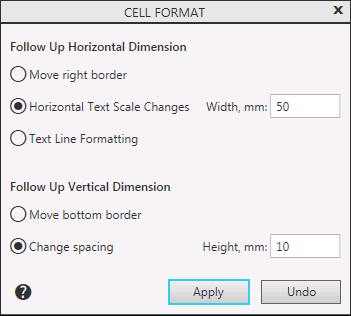
Allows you to specify the height of the row and the width of the column that contain the selected cell, as well as the "behavior" of the table when entering text into this cell. If a range of cells is selected, you cannot enter the row height and the column width.

Description of Controls
Name |
Description |
|
Follow Up Horizontal Dimension |
In this group the method of formatting text in a cell in width is set. |
|
Move right border |
The text is formatted as it is entered by moving the right border of the cell. |
|
Change Horizontal Text Scale |
Text formatting as you type it is done by reducing the width of characters. Thus, the text fits into the dimensions of the cell, taking into account the assigned indents to the left and right. |
|
Text Line Formatting |
The text is formatted as it is entered by automatically moving a word to a new line when it reaches the cell border. |
|
Width, mm |
The field for entering the width of the column in which the cell is located. Available if the option is enabled changing horizontal text scale or text line formatting. |
|
Follow Up Vertical Dimension |
In this group the method of formatting text in a cell by height is set. |
|
Move bottom border |
As you enter text, the lower border of the cell moves. |
|
Change spacing |
The line spacing changes as you type. Thus, the text fits the cell size with account of the assigned indentation at the bottom and top. |
|
Height, mm |
The field for entering the height of the line in which the cell is located. Available if the Change Line Spacing option is enabled. |
The availability of dialog controls also depends on the following parameters of the table being configured:
•If the Single-Line Text option is enabled for the cell on the Parameter Panel, then Formatting strings, Lower Boundary Transfer and Change Line Spacing options are unavailable.
•If when setting table size locking,the option Fix cell dimensions is enabled, the options Move right border and Move bottom border become unavailable. Also, following fields are not available: column width and row height.
After completing the setup, press the Apply button. To exit the dialog without saving changes made, press the Cancel button.
