|
Advanced Cell Format Settings Dialog |
Scroll |
Allows you to set advanced parameters for a table cell. These parameters are needed only when creating or editing tables of the main title, therefore the dialog can be called up on the screen only in this mode.


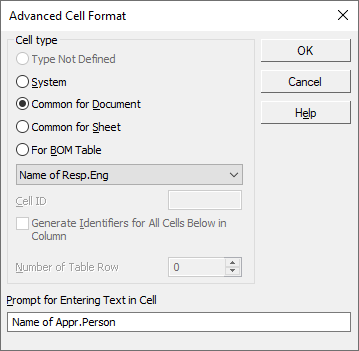
Description of Controls
Name |
Description |
|
Cell type |
The options group allows you to select the desired cell type (title block columns). |
|
Type Not Defined |
The option is enabled by default for a cell that has not been configured. It indicates that the cell type is not selected. Use other group options to select the type you want. If the cell type is left undefined, then it will not be possible to enter data into it when filling out the title block. After selecting the desired cell type, the option becomes unavailable. |
|
System |
Enable this option so that the text in the cell appears automatically, and select from the list the cell identifier – the type of data that should be entered into the cell. The list is available when the option is enabled in System. |
|
Common for Document |
Enable this option so that the data entered in the cell when filling in the title block (e.g., Scale or product name), automatically transferred to other cells of the same type contained in the basic inscriptions of the same sheet and the remaining sheets of a multi-sheet document. The cell ID is also selected from the list. The list is available when the option Common for document is enabled. |
|
Common for Sheet |
Enable this option so that all cells of this type with the same identifiers located on the same sheet contain the same data. It is enough to enter text into one of the cells so that it appears in the other cells. For this type of cell, you must enter a numeric identifier in the Cell ID field. The field is available when the Common for sheet option is enabled. |
|
For BOM Table |
Enable this option to configure the cells of the BOM table. For these cells, you need to select an identifier from the list and specify the row number of the BOM table in which the custom cell is located. All cells of one column must have the same identifier and differ only in the row number. You can assign the selected identifier to several cells at once by turning on the option Generate Identifiers for All Cells Below in Column. BOM items are available when the option is enabled For BOM Table. |
|
Prompt for Entering Text in Cell |
This field allows you to specify the text that will be displayed in the Message Area of the Parameter Toolbar when you enter content in this cell of the main label. If after the query text you enter "|" (vertical bar symbol) and custom menu number from file Graphic.pmn then double clicking in this cell will bring up the corresponding user menu. More information about the user menu file... |
Detailed information on the types of cells and the assignment of identifiers are given in the table. Types of cells in the main title table.
After setting the advanced cell format parameters, click OK. Click Cancel to discard all changes and close the dialog box.
