|
Dialog of parameters of reading file in proprietary format into model KOMPAS-3D |
Scroll |
A dialog appears on the screen after calling the Open with parameters command from the Open button menu when importing a model from one of the files. Proprietary formats, except for AutoCAD formats (*.dxf, *.dwg). The dialog allows you to configure the import options.

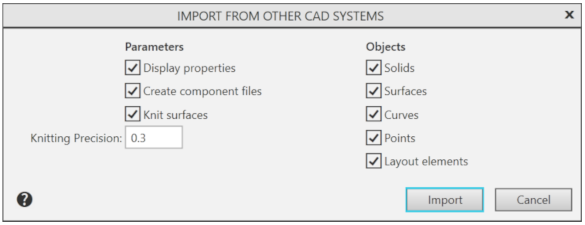
Description of Controls
The element |
Description |
|
Group Parameters |
||
Object colors |
This option is used to enable/disable the import of colors of model objects. |
|
Create component files |
The state of the option affects the process of creating components when importing an assembly model: •If the option is enabled, the components are written to separate files and are independent models, •If the option is disabled, the components are stored inside the assembly as local models. |
|
Knit surfaces |
This option is used to knit surfaces. If this setting is enabled, the system will try to merge the imported surfaces. As a result, you can get a larger surface or solid (if the source surface is closed). If this setting is disabled, the knitting won’t be applied, and the imported surfaces would be similar to the original ones. Please note that the Knit surfaces setting only affects surfaces and do not affect bodies. |
|
Knitting Precision |
Field to enter the value of the maximum distance between the edges of knitted surfaces. The range of valid values is 0–1000 mm. The field is available when the option is enabled Knit surfaces. |
|
Group Objects |
This group of options is used to manage the import of model objects. When this option is enabled, objects of the corresponding type are imported into the model. The dialog contains the following options: •Solids, •Surfaces, •Curves, •Points, •Detailing elements — dimensions, designations, and text objects are imported. |
|
After completing the settings, click the Import button. To exit the dialog without reading the file, click Cancel.
