|
Configuring toolbars |
Scroll |
By default, all toolbars displayed in the left part of the graphic region, and the buttons that control their state are combined into a block, docked to the left-hand border of the KOMPAS-3D window.
You can extract any panel from the block, if needed. To do this, drag the panel toward the center of the screen using one of the following methods:
•drag the button which controls the state of the panel,
•drag the panel by its header (if panel display is enabled).
The extracted panel can be left in the floating state.Additionally, it can be docked to the border of the KOMPAS-3D window (either the right or left), or to another, non-floating, toolbar.
•To make the panel floating, during dragging release the mouse button in an arbitrary place of the screen. A floating panel can be moved in different places but you cannot hide it — there is no button that manages the state of the panel.
•To dock the panel to the border of the KOMPAS-3D window, drag the panel to this border, and when the border is highlighted, release the mouse button. A column with a button to control the panel state will appear next to the border.
•To dock the panel to another panel, move it until the needed panel border is highlighted (if the panel is expanded) or the column border with its managing button is highlighted (if the panel is collapsed), and then release the mouse button. A column with the managing button for the panel that you move will appear next to the selected border (see the figure).
|
|
a) |
b) |
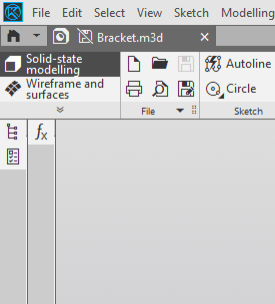
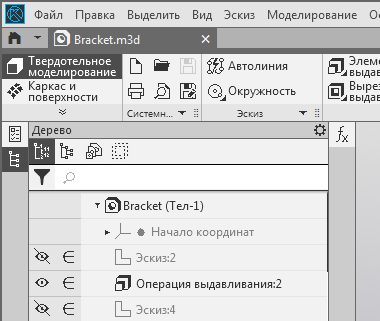
Sequential placement of panels:
a) toolbar display is disabled;
b) document tree panel display is enabled
Toolbar can be combined into blocks similar to the default block at the left border of the KOMPAS-3D window. To to this, when dragging you should release the mouse button when the highlighting will appear as a marquee around the panel to do merging with, or around the column with its control button (see the figure).
|
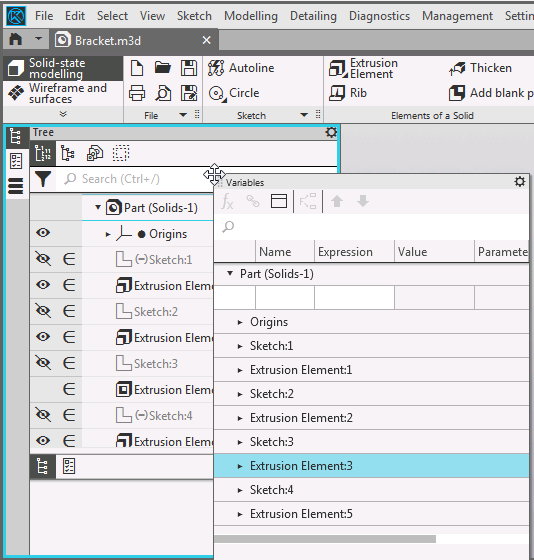
Merging panels into a block
Each panel position is remembered for the following work sessions. The exception is the Document tree toolbar — its position is saved only for the documents of the same type.
Setup of the position of toolbars made in the current window will not be transferred to Other windows of KOMPAS-3D.
You can savethe settings of toolbars.
In KOMPAS-3D, you can change not only the position of the toolbar but also its size. The horizontal size of the panel changes in a regular way – by dragging its border with the mouse. If the panel is floating, you can also change its vertical size, by dragging the top or bottom border of the panel.
The header of each panel has a button  . It opens the menu for setting up the panel. Each panel has its own set of commands.
|
In the preview mode, configuring toolbar is not possible. |

