|
Change of the horizontal dimension of a toolbar |
Scroll |
The horizontal dimension of the toolbar is determined by number of columns with commands and the display option of command names . You can changed the horizontal size in the main system window and in the interface setting mode.
Configuring the number of columns with commands
To change the number of columns with commands on the a toolbar you can use the following context menu commands (see figure):
•Extend bar to one column – allows to increase the number of columns by one to display commands on the toolbar. If there were hidden commands on the toolbar, three of them become visible then after adding of a column. If there were no hidden commands, then there occurs redistribution of commands on the toolbar: they are placed to its upper part.
The command is available as long as the number of columns is less than the number of commands on it. If the size of the Toolbar Panel does not allow to add a column to the toolbar, then the number of columns does not change.
•Reduce bar by one column – allows to reduce the number of columns by one to display commands on the toolbar. If there is not enough space for all commands on the toolbar, some of them are hidden.
The command is available as long as the number of columns on the toolbar is greater than one.
•Show all commands on toolbar – allows to add a number of columns at which all the toolbar commands become visible.
The command is available as long as there are hidden commands on the toolbar. If the size of Toolbar Panel does not allow to add the desired number of columns, their number does not change.
Display of command names on the toolbar
On a toolbar either only buttons or buttons with command names can be displayed. To respectively change the horizontal dimension of a toolbar, drag its right-hand border to the required direction with a mouse to an arbitrary distance. The toolbar is automatically minimized or maximized.
Note that the size of panels in the Tool Area is confined by the size of the KOMPAS-3D window, so to maximize one panel, it might be necessary to minimize another first.
|
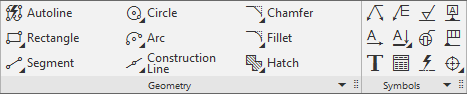
The options of displaying commands on panels: buttons with names and only buttons
