|
Changing the vertical size of the Toolbar Panel |
Scroll |
Vertical dimension of the Tool area of the window is determined by the number of rows with commands displayed on toolbars.
You can change the number of rows on the toolbar Panel when you work in the main system window or in the interface setting mode.. To do this, use commands of the context menu of the Toolbar Panel. You can open this menu both on one of the toolbars and in a free area of the Toolbar Panel (in the latter case, the menu contains only the commands for changing the number of rows).
The set of commands depends on the current number of rows of the Toolbar Panel: if the Panel is made up of one row, then the context menu contains the commands Two rows and Three rows, and so on.
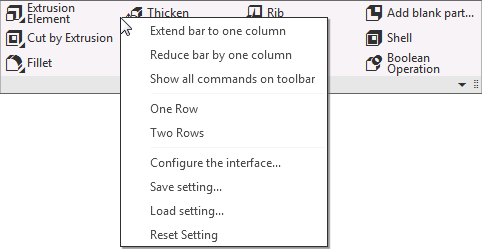
To set the required number of rows of the Toolbar Panel, call the respective command from the context menu.
The vertical size setup of the Toolbar Panel made in one of the documents applies to the documents of the same type only. For example, the vertical size that was set in the part applies only to the documents of the part type. You can set up the desired size of the Toolbar Panel for each type of documents.
