|
Move to Layer dialog |
Scroll |
Use this dialog to specify the layer, to which it is required to transfer the objects selected in a drawing, fragment or sketch (while working in a drawing, all the selected objects should belong to one view, not necessarily current).
The dialog appears on the screen after running the Move to Layer... command from the Edit menu or the context menu of the selected object.

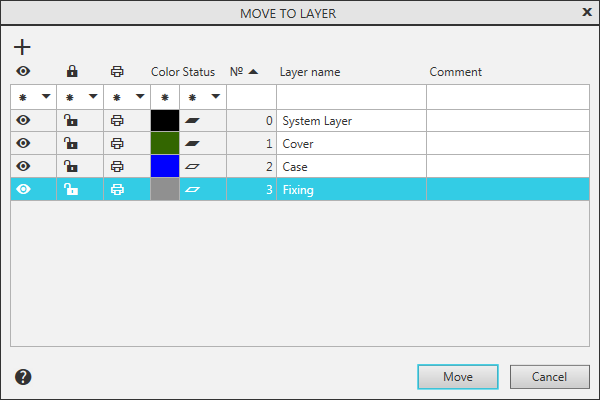
The dialog contains the list of all the layers of a drawing view to which the selected objects belong, and when working with a fragment or sketch in a model, the list of all layers of the fragment or sketch.
The list of layers looks like a table where the properties of each layer are specified.
To select the layer to move the selected objects to, specify its line in the table.
To search for the desired layer quickly, you can use the following techniques:
•Filtering of layers — the filtering criteria are specified in the cells of the top line in the table.
•For Visibility, Activity, Print and Status properties, click on the triangle in the cell and select a filtering condition from the list that appears.
•For No., Layer name and Comments properties, type characters in the cell to set the filtering condition.
•For Color property, click in the cell and specify the desired color in the color palette that appears.
If you need to cancel filtering, click the Clear Filter  button on the dialog box toolbar (the button appears if filtering has been applied).
•Layers can be sorted by number, layer name or comment.
To select a column for sorting, click on its name, and to change the direction of sorting, click on the triangle appearing to the right of the column name.
When the desired layer is selected, click Move. The dialog will close, and the selected objects will be moved to the specified layer.
To exit the dialog without moving the objects, click Cancel.
|
When you transfer objects to the background layer, they are deselected. To display these objects, use the style specified for drawing background layers. Objects transferred to the hidden layer no longer appear on the screen. |

Beside selecting the layer, the dialog has the following features.
•Creation of a new layer.
To create a new layer, click Add a layer  button on the dialog toolbar. In the bottom part of the table the new layer line will appear; the layer property values are default. When you work in a drawing, a new layer is created in the view to which the selected object belongs.
•Setting up properties and parameters of layers.
To change a property or parameter value, click the required cell. At this point, in the cell Visibility, Activity or Print, the value will toggle to the opposite (the icon in the cell will change), a color selection panel will appear next to the cell Color, and the cell Number, Name or Comments will become available for input.
|
Creation of a new layer in the dialog, as well as changes in the parameters and properties of the layers cannot be undone. |
