|
Line style manager |
Scroll |
The line style manager is used to manage the line style list of a document.

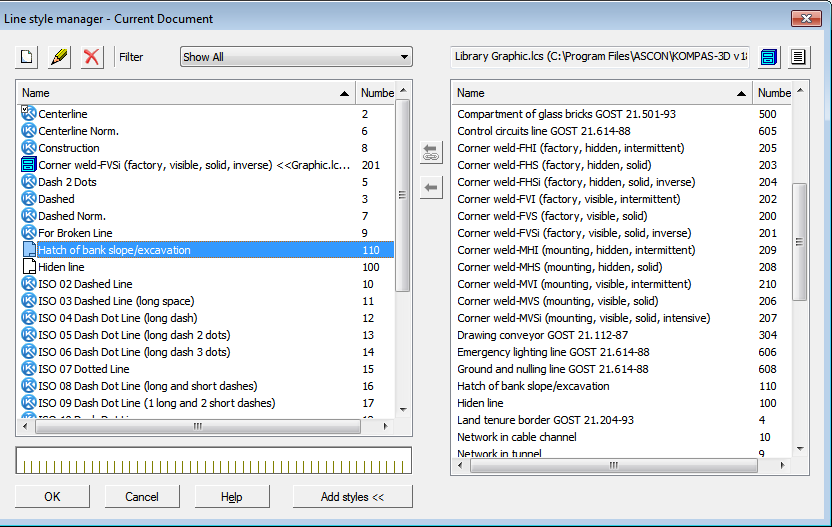
By default, the Line Style Manager opens in a minimized view, i.e. Only its left side is displayed. It contains a list of line styles. Styles are marked with icons:
 system style,
 embedded in the document style,
 library style.
In the list of line styles of the current document, icons may have a "checkmark" indicating that the style is involved in the document, i.e. it is used  .
.
The right side of the Line Style Manager appears after clicking Add styles button. This part is used to select the library. ( or a set of styles and the inclusion of styles from it in the list of document styles. Line Style Manager controls are listed in the table.
Description of Controls
The element |
Description |
|
|
Create |
The button allows you to create a style. A new style is added to the list of document styles as an embedded style. When you press the button the Dialog for creating/editing line style. |
|
Edit |
The button allows you to edit the selected style. Available when the embedded style is selected in the document style list. When you press the button the Dialog for creating/editing line style. |
|
Delete |
The button allows you to delete the selected style (s). It is available if you select an unused style(s) in the list of document styles — embedded or from the library. After you click the button, a dialog opens in which you want to confirm the deletion or reject it. |
Filter |
List of filters for the list of document styles: •Show All •System styles •Embedded styles •Library Styles •Used styles •Unused styles To apply a filter, select it from the Filter. Only styles that match the filter will remain in the list of styles. |
|
Add styles |
The button allows you to add styles from a library or set to the list of document styles. After pressing it, an additional area with controls appears in the Line Style Manager. To close this area, press Add styles button consecutively. |
|
|
Show Library |
Button to select a library of line styles. After pressing it, a dialog opens in which you want to specify the line style library file (*.lcs) and click Open button. A list of library line styles will appear in the preview window. |
|
Show Set |
Button to select a library of line styles. After pressing it, a dialog opens in which you need to specify the name of the set and click Select button. A list of line styles is displayed in the preview window. |
|
Add library style |
The button allows you to add one or more library styles to the list of document styles. Available if there are selected styles in the list of library styles. After clicking the button, the selected styles are included in the document list as library ones. Library styles retain links to the library files from which they were added to the document. |
|
Embed Style into Document |
The button allows you to embed one or more library styles or styles from the set into a document. Available if the list of library styles or styles from the set contains selected styles. After clicking the button, the selected styles are included in the document list as embedded. Styles embedded in a document from libraries do not retain links to the files of these libraries. |


When you have finished setting up the line style list for the document, click OK. Click Cancelto discard all changes and close the line style manager.
If a library style lost its connection to the library, an exclamation mark in the red circle is added to its icon  .
.
Breaking the links between the document library styles and the library occurs in the following cases:
•move to another folder of the library file from which the styles were added to the document;
•remove the appropriate stylesheet from the library.
When you open a document in the style list of which there are styles with a broken link, a message appears on the screen stating that styles or style libraries were not found.
Restoring connections is possible in one of the following ways:
•place the library file as before, then close and open the document – the library and styles will be found in it;
•without moving the library, open it in the Line Style Manager and re-add styles from it to the document style list — the previous path to the library file will be replaced with the current one.
|
If there are several library styles with a broken link in the list, then for convenience, you can use the filter Library, with broken link. |

If it is not possible to restore the library or styles in it, edit the objects using the styles with a broken link, assigning other styles to them, and then remove the styles with a broken link from the list of document styles. You can act, for example, as follows.
1.Open the Line Style Manager, note the name of the style that has lost its connection with the library, and close the Line Style Manager.
2.Select objects using this style in the document with the Select by Properties... command.
3.Change style Selected objects by others.
4.In the Line Style Manager, delete a style that has lost its connection to the library.
|
Lines that use a style with a broken link retain their typeface, so you can not change their style (e.g. if there are no styles for replacement). However, in this case the style with a broken link will be not possible to delete, and a warning will be issued when the document is opened. |

