|
Design modes. Break line editing |
Scroll |
The Break in View command has two operating modes – Creation and Edit. While the command is running, you can switch between the modes using the toggle switch at the top of the Parameter Toolbar.
After you call the command, the mode Creation is active. In this case, the graphic area shows the view in full, and the break borders as straight lines, see Fig. a). The user can control the distance between the break boundaries by moving them using the defining points.
In the Edit mode, the view is displayed as it will appear after the command is completed; the break boundaries are shown "realistically", i.e., in accordance with the specified line type: wavy, jagged, etc., see Figure b. The user can control the visibility and length of the break lines. For more details, see the sections below.
|
|
|
a) |
b) |
c) |
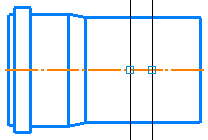
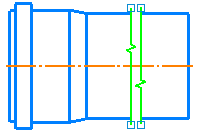
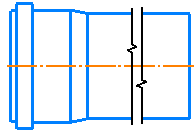
View of break lines:
a) creation mode, b) edit mode, c) drawing result
You can configure the break parameters (for selecting the type of the line, setting the size of its elements, etc., see section Creating a break) is possible both in the Creation mode and in the Edit mode.
If a new break is added in Edit mode, automatic switching occurs to Creation mode.
Visibility control for the sections of the break lines
You can delete a section of the break line. To do this, move the cursor to it and lick the left mouse button. The section of the line bounded by the points of its intersection with other objects will be deleted. In the example in the figure below, the middle part of the break line is deleted in the Edit mode.
|
|
a) |
b) |

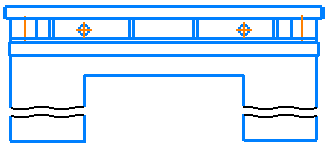
Example of deleting sections of the break lines:
a) the break line in the edit mode before deleting sections, b) drawing result
Correction of the break line length
You can change the length of the break line using the defining points. To move the defining point, move the cursor to it, click the left mouse button, and, while holding it down, move the mouse to the desired position (the point can be moved only along the break line).
|
If you change the view objects, the defining points of the break lines that were moved during editing do not change their position. In this case, you need to restore the break lines and re-edit them. |

You can discard the changes you made manually in the Edit mode and restore the original appearance of the break lines in one of the following ways.
•Invoke the Restore Break Lines command from the context menu of the view in the Design Tree. In this case, all the modified breaks contained in the view will be restored.
•Select the required break in the list Breaks on the Parameters toolbar (a symbol «*» is displayed next to the name of the edited break) and click Restore  . In this case only the selected break will be restored.
