|
Create or Edit Link dialog |
Scroll |
This dialog appears on the screen after calling the Insert link or Edit link... command.

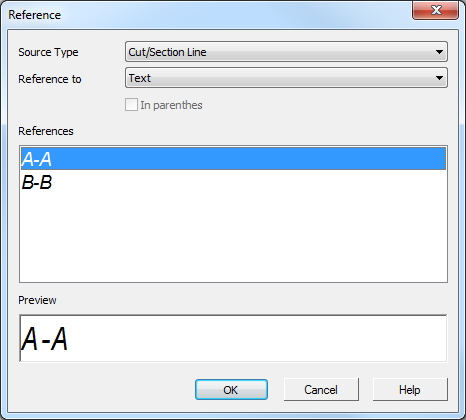
Dialog controls allow you to create and edit links.
Description of Controls
Name |
Description |
|
Source Type |
A list that allows you to select the type of object – the source of the link. The content of this list depends on the objects present in the document. For example, if position designations are available, a reference to the position number can be created in the technical specifications. |
|
Reference to |
a list that allows you to specify what will be the content of the link. The set of link content options depends on the type of source. For most sources, a link to text, zone designation and sheet number is possible. If the source type is View, then link building has certain features (see table Variants of Contents of a Reference to a Drawing View). If the source is located in several zones, then when you create a link to the zone designation, the source location is considered to be only one of the zones (see table Defining the zone in which the source of reference is located). |
|
In parentheses |
Enable this option to enclose the contents of the link in parentheses. |
|
Decimal Places |
The list appears in the dialog if the source of the link is Variable and replaces the option In parentheses. The list becomes available if in the list Link to: an option Value or Name = value is selected. The list allows you to specify the number of decimal places displayed in the numeric value of the variable reference. The variable value is rounded to the specified character. If 0 is selected, the link displays a rounded integer. The maximum number of characters is 6. Angular values in variable references are represented in decimal notation. |
|
References |
A list in which the texts of all sources in the document of the selected type are displayed. Sources are listed in a row. A source containing several lines of text or several landings to which links can be made is displayed in list as follows: the first line is without indentation, like a source with one line, and the second and subsequent lines are left indented. To specify the desired source, select its text in the list. The selected source is also highlighted in the graphics area of the document. |
|
|
Items technical specifications are not highlighted in the drawing when they are highlighted in the list of sources. |
|
|
If the source type is document or object properties, then in the Source List, properties with non-empty values are listed. The value of the selected property, i.e. the text that will be the content of the link, is displayed in the View field. |
|
View |
This field displays the created link as it will be inserted into the text. If the formation of a link with the specified parameters is not possible (for example, when trying to create a link to text under a landing line-leader, which only contains text above landing), that View field is empty and the OK button is unavailable. |

To complete the creation or modification of a link, click OK. To exit the dialog without changes, click Cancel.
