|
Chain Angular Dimension |
Scroll |
Chain angular dimension is a chain of simple angular dimensions that follows certain rules: the first angle side of the next dimension coincides with the second angle side of the previous one, and dimension lines are located on the same circle.
Parameters are set separately for each dimension in the chain. If all dimensions must have the same parameters (e.g. arrows of a certain type), call the Remember setting command from the button menu  in the title of the Parameters Panel. You will see a tick mark next to the command name, and selected parameters will be stored for subsequent dimensions.
Dimensions included in the chain are independent objects. They can be selected, edited and removed separately.
To build a chain of angular dimensions, follow these steps.
1.Invoke the Angular Chain command  .
.

2.Set the first and second sides of the angle to set the first dimension in the chain. To do this, specify rectilinear objects or points in the graphic area that can be joined to create angle sides (see section Angle sides configuration).
The graphic area will display the angle vertex and dimension phantom.
3.Select the type of the first dimension using the Type group of buttons:
 Minimum angle — dimensioning at acute angle,
 Maximum Angle — dimensioning the obtuse angle,
 An angle greater than 180 degrees — dimensioning an angle of greater than 180 degrees.
4.Select how dimension’s extension lines are to be drawn using the Leader lines group of buttons:
 Not from center,
 From the center.
5.Edit the dimension text, if required. To start working with the dimension text, press any alphanumeric key. See section on editing the dimension label...
6.Set the number of decimal places in the dimension text. Details...
7.Set a dimension tolerance. Details...
8.Set up additional dimension parameters, if required: dimension text placement option, arrow display parameters, etc. Details...
9.Set the point defining the dimensional line location. This position will be the same for all dimensions in the chain.
•If you select automatic, fixed or manual placement of the dimension text, the specified point also defines the text position. After this point is specified, dimension creation is automatically completed.
•If you select to place dimension text on the landing, the specified point defines dimensional line location and start of the leader. In this case, you need to specify one more point – a starting point of the landing. After this point is specified, dimension creation is automatically completed.
10.The second side of the first angle becomes the first side of the second angle. Set the angle’s second sides to set the second dimension in the chain. To do this, specify a segment or two points. Configure dimension parameters and position of dimension text.
11.Set the remaining dimensions in the chain in the same way.
|
Sides of angles for all chain dimensions must go through one point – the center of the circle containing dimension lines. This point is the same as the vertex of the first angle. |

|
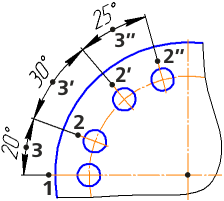
Setting a chain of angular dimensions
(angle sides set using segments)
12.If you want to switch to setting the next dimension in the chain, cancel selection of the angle’s first side. To do this, press the Start New Input  button or remove the name of the selected segment from the Objects field.
13.To complete operation of the command, click Complete  .
.
See Also
