|
Diameter Dimension |
Scroll |
To build a diameter dimension, follow these steps.
1.Call the Diameter Dimension command  .
.

2.Specify a circle (or circle arc) to be dimensioned. Its name will be displayed in the Object field, and the graphic area will display a phantom of the dimension.
3.Select dimension line type using the Type group of buttons:
No Break — the entire dimension line is displayed,
 Trimmed — the dimension line extends beyond the circle center to a distance equal to 1/5 of its radius, but not less than the distance specified in this document for the dimension line to extend beyond the text (see section Parameters).
4.Edit the dimension text, if required. To start working with the dimension text, press any alphanumeric key. For more details on editing the dimension text...
5.Set the number of decimal places in the dimension text. Details...
6.Set a dimension tolerance. Details...
7.Set up additional dimension parameters, if required: dimension text placement option, arrow display parameters, etc. Details...
8.Set the point defining the dimensional line location. It can be specified inside or outside the circle.
•If you select automatic, fixed or manual placement of the dimension text, the specified point also defines the text position (see Fig. a). After this point is specified, dimension creation is automatically completed.
•If you select to locate the dimension line on the landing, the following options are available:
•Selection inside the circle – the point defines dimensional line location and the start of the leader line; in this case, you need to specify one more point – a starting point of the landing (see Figure b),
•selection outside the circle – the point defines dimensional line location and the landing start (see Figure c).
After the points are specified, dimension creation is automatically completed.
9.To complete operation of the command, clickFinish  .
.
|
|
|
a) |
b) |
c) |
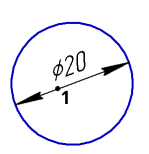
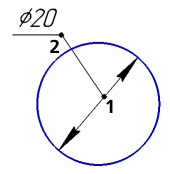
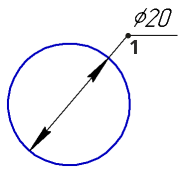
Diameter Dimensions:
a) with auto-placed text; b) and c) with text on the landing
|
When editing the projection dimension, some elements of the Parameter Panel are unavailable. |

See Also
