|
Surface Finish |
Scroll |
</To create a designation for surface finish, use the Surface Finish  command.

Step-by-step instructions
1.Configure the settings for designation of surface finish. That is done in the same way as on creation of a designation of surface finish in the graphic document, with the only difference: on placement of a signage on the landing, you change the landing direction using the <Ctrl>key. Details...
2.In the graphic region, specify the object for labeling a designation. The name of the selected object will be displayed in the Object field. In the graphic region, a phantom of the surface finish signage will appear.
3.After specifying an object, the position of the designation plane is automatically determined. If necessary, you can change position of designation plane position, by selecting a different base plane. For this purpose, use the Placement group elements.
4.Set the position of the surface finish symbol.
If the symbol is placed on a leader line shelf, the point specified on the object is the leader line's endpoint. In this case, you need to specify the leader line's start point by clicking in the model's graphic area.
If the designation is placed on a surface, the point indicated on the object determines the position of the designation.
5.After you've locked the position of the surface finish symbol, the Text Input subprocess will launch. Enter the text for the label and adjust its parameters, just as you would when creating a roughness symbol in a graphic document. More...
6.If necessary, create the required number of leader line branches. More...
You can also add objects to a symbol without creating additional branches. To do this, click in the Objects field, then select the desired objects in the graphic area. The selected objects will be highlighted, and their names will appear in the Objects field.
7.If required, specify the name and color of the designation using the elements in the Properties section. More about color management of objects...
8.To complete the creation of the surface finish symbol, click the Create Object  button.
The created designation will appear in the graphic area, and the corresponding icon will appear in the Design Tree. .
The designation parameters and the generated text are saved until the command is completed. To change the text when adding subsequent designations, click in the Text field on the Parameters panel.
9.To complete the command, click the Finish button.
|
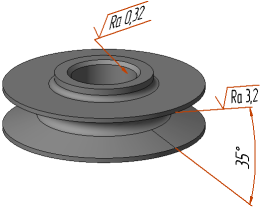
Example of labeling the designation of surface finish
See Also
